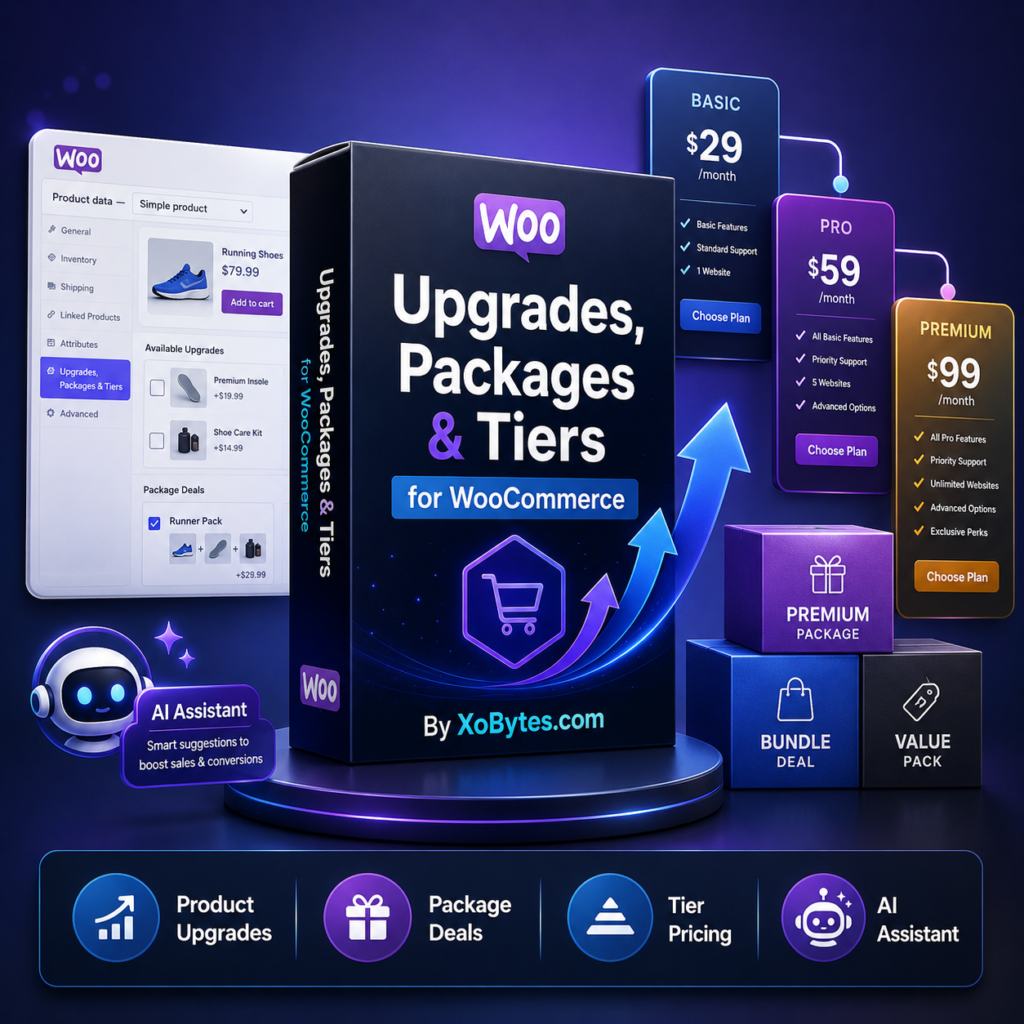
The Upgrades, Packages & Tiers for WooCommerce plugin helps you turn simple WooCommerce products into better offers.
Instead of selling one product at one price, you can create an original package, add upgrade options, build package deals, and offer tiered pricing. Even better, the plugin adds the real included WooCommerce products to the cart. So downloads, subscriptions, licenses, and product fulfillment can still work the normal way.
In this guide, you will learn how to use the plugin step by step.
What the Plugin Does
The plugin adds a new Upgrades, Packages & Tiers tab inside the WooCommerce product editor.
From that tab, you can build offers like:
- A basic package and a premium package
- Good, better, and best tiers
- Product bundles with special pricing
- Digital download packages
- Software license bundles
- Subscription package options
- Add-on upgrades for related products
For example, you could sell a “Starter Plugin Bundle” as the main WooCommerce product. Then, inside that package, you could include three real WooCommerce products at special package prices.
Because the included products remain real WooCommerce products, your store can still use downloads, licenses, subscriptions, and order line items correctly.
Step 1: Install and Activate the Plugin
First, go to your WordPress dashboard.
Then go to Plugins > Add New > Upload Plugin.
Upload the plugin ZIP file. After that, click Install Now and then click Activate.
WooCommerce must also be active. If WooCommerce is not active, the plugin cannot run because it depends on WooCommerce products, carts, and orders.
Step 2: Open the Plugin Dashboard
After activation, go to:
WooCommerce > Upgrades, Packages & Tiers
This page includes several tabs:
Overview shows saved deals and basic plugin information.
AI Package Assistant lets Pro users generate package ideas from order history.
License & API lets you activate your Pro license and save an OpenAI API key.
Settings controls where package offers appear and what happens after a customer adds an offer.
Start with the Overview tab if you want to see existing deals. However, most of your package setup happens inside each WooCommerce product.
Step 3: Check the Display Settings
Next, open the Settings tab.
There are a few important options here.
You can choose what happens after a customer adds an offer. The plugin can send the customer to the cart or the checkout page.
You can also decide where offers appear. You can show them on product pages, on the cart page, or both.
For most stores, the best starting setup is:
After adding an offer: Cart
Show offers on product pages: Enabled
Show offers on cart page: Enabled
This gives customers more than one chance to see the package offer before they buy.
Step 4: Open a WooCommerce Product
Now go to:
Products > All Products
Open the WooCommerce product you want to turn into a package or tiered offer.
This product becomes the landing product for your deal. In other words, this is the product customers will see first.
Scroll down to the Product data section. Then click the tab named:
Upgrades, Packages & Tiers
Step 5: Enable the Product as a Deal Product
Inside the tab, check this option:
Enable this product as an Upgrade, Package & Tier deal product
Once you enable it, this WooCommerce product becomes the main package/deal product.
The first row inside the plugin is called the Original Package. This row controls the base package for the product.
The original package total also syncs to the WooCommerce product price for catalog display. So, if your original package total is $49.00, the main product can show $49.00 in your store.
Step 6: Add an Internal Deal Title and Description
Next, fill in the Internal deal title.
This title helps you identify the deal in the plugin dashboard. You can usually use the product name here.
Then add a Deal description.
This description should explain the overall offer. For example:
“Choose the starter package, upgrade to the pro package, or select the complete bundle for the best value.”
Keep this short and clear. Customers should understand what they are choosing right away.
Step 7: Choose Where the Offer Appears
The plugin lets you choose where the offer appears.
You can select:
Product page and cart
Product page only
Cart only
For most products, choose Product page and cart.
This shows the package options on the product page. Also, it can show related upgrade options in the cart.
You can also add extra trigger products. This means the same offer can appear when customers view or cart related products.
For example, if you sell a plugin package, you could trigger the offer from the main product and a related add-on product.
Step 8: Build the Original Package
Now set up the Original Package row.
Add an original package name. For example:
“Starter Package”
“Basic Bundle”
“Original Package”
“Standard License Package”
Then search for products inside the original package.
This is important: do not add the deal product itself inside the package.
Instead, select the real WooCommerce products that should fulfill the package. These can be simple products, variations, downloads, license products, or subscription products.
After selecting products, enter the package price for each item.
For example:
Product A normal price: $25.00
Package price: $20.00
Product B normal price: $30.00
Package price: $25.00
The plugin adds those item prices together to calculate the package total.
So, in this example, the original package total would be $45.00.
Step 9: Add an Additional Package Row
If you want to offer another option, click:
Add Additional Package Row
Now you can create a second package option.
For the offer type, choose one of these:
Upgrade works best for add-ons and premium extras.
Package works best for bundles.
Tier works best for good, better, best offers.
For example, you could create:
Original Package: Starter Bundle
Additional Package: Pro Bundle
Offer Type: Tier
Included products: Starter products plus advanced products
Package item total: $99.00
This gives customers a clear upgrade path.
Free mode includes the original package plus one additional package option. Pro unlocks unlimited additional package rows.
Step 10: Use Package Item Prices Correctly
Each included product needs its own package price.
This is one of the most important parts of the plugin.
The normal WooCommerce product price stays the same when someone buys the product by itself. However, the package item price only applies when the customer buys that package option.
For example:
Normal product price: $50.00
Package item price: $35.00
That product still sells for $50.00 on its own. But inside the package, it counts as $35.00.
This gives you more control than a simple bundle discount.
Step 11: Use Subscription Package Pricing
If a package should be sold as a recurring offer, turn on:
This package is a subscription price
Then choose the billing period.
You can set the package billing period to something like:
Every 1 month
Every 1 year
Every 2 weeks
Every 30 days
This recurring label appears on the storefront, cart, and order metadata.
Also, when the original package is a subscription package, the plugin syncs the original package total into the WooCommerce subscription price fields. This helps prevent conflicting prices, trials, signup fees, or expiration rules.
If you sell recurring package deals, the plugin recommends using Subscriptions for WooCommerce by WP Swings, which is available as a free download here: Subscriptions for WooCommerce.
Step 12: Save the Product
After you build the original package and any additional package rows, click Update or Publish on the product.
The plugin saves the package data when the WooCommerce product saves.
Then, check the frontend product page.
You should see the package selector near the top of the product page. Customers can view the original package and any upgrade, package, or tier options.
Step 13: Test the Customer Buying Flow
Before you sell the package, test it yourself.
Open the product page in a private browser window. Then select a package option and click the normal WooCommerce Add to Cart button.
The plugin should add the real included products to the cart with the saved package prices.
Next, check the cart. Make sure the products, prices, and package labels look right.
Then place a test order. After checkout, confirm that downloads, licenses, subscriptions, or fulfillment rules still work as expected.
This step matters because every store setup is different.
Step 14: Use the AI Package Assistant
Pro users can use the AI Package Assistant.
To use it, go to:
WooCommerce > Upgrades, Packages & Tiers > License & API
Activate your Pro license. Then add your OpenAI API key.
After that, go to the AI Package Assistant tab or use the assistant inside the product editor.
The assistant reviews recent WooCommerce order history. Then it looks for products that customers often buy together.
It can suggest:
- Package names
- Upgrade ideas
- Tier ideas
- Product groupings
- Customer-facing descriptions
- Package price ideas
This can help you build smarter offers based on real buying behavior.
Free vs Pro Mode
The free version is good for testing and small stores.
Free mode includes:
- Up to 10 deal products
- The original package plus 1 additional package option per deal product
- Product editor package builder
- Product page package display
- Cart handling for selected packages
Pro unlocks:
- Unlimited deal products
- Unlimited upgrade, package, and tier rows
- AI Package Assistant
- Removal of free-mode banners
The Pro version is available for $25.00 per year from the Upgrades, Packages & Tiers product page.
Best Practices for Better Package Offers
Start with one strong original package. Then add one clear upgrade.
Do not create too many choices at first. Too many options can slow customers down.
Use simple names like Starter, Pro, and Complete. These names are easy to understand.
Also, make the savings obvious. If products cost $120.00 separately but the package costs $89.00, mention that in the package description.
Use product images and short descriptions on the included products. The plugin can show included product details, so better product content makes the package look more professional.
Finally, test the cart and checkout after every major change.
Common Mistakes to Avoid
Do not add the deal product inside its own package. The package should include the real products that fulfill the offer.
Do not leave package item prices blank. Each included product needs its own package price.
Do not create unclear package names. Customers should know the difference between each option.
Do not rely on the AI assistant without reviewing the results. AI can help, but you should still check the offer, pricing, and product fit.
Do not skip test orders. Testing helps you catch pricing, subscription, download, or license issues before customers do.
Final Thoughts
The Upgrades, Packages & Tiers for WooCommerce plugin gives WooCommerce store owners a better way to sell bundles, upgrades, and tiered offers.
You can build a simple original package. Then you can add premium upgrades, package deals, or good-better-best tiers.
Most importantly, the plugin keeps the included products as real WooCommerce order items. Because of that, downloads, licenses, subscriptions, and fulfillment tools can keep working the way they should.
If you want to increase order value and give customers better buying options, this plugin is a strong addition to your WooCommerce store.
Leave a Reply