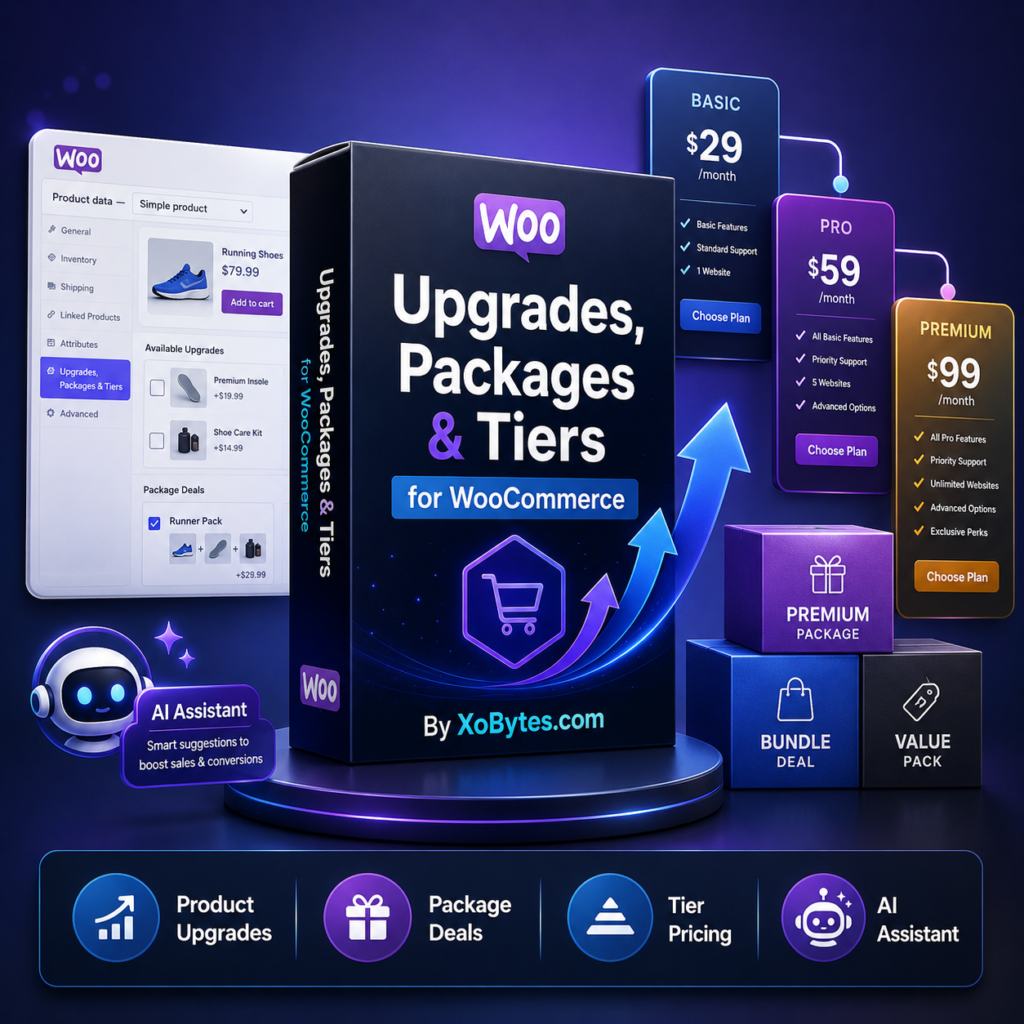
The Upgrades, Packages & Tiers for WooCommerce plugin helps you build better product offers inside WooCommerce.
With this plugin, you can create product upgrades, package deals, bundle offers, and tiered pricing options directly inside the WooCommerce product editor. It is a useful tool for stores that sell digital products, software, subscriptions, downloads, service packages, product kits, or license-based products.
In this guide, you will learn how to install the plugin, activate it, check the settings, and prepare your first WooCommerce package deal.
What You Need Before Installing the Plugin
Before you install the plugin, make sure your website has the right setup.
You need:
- A WordPress website
- WooCommerce installed and active
- WordPress 6.3 or newer
- PHP 7.4 or newer
- WooCommerce 8.0 or newer
- The plugin ZIP file
- A Pro license key if you want to unlock Pro features
The plugin depends on WooCommerce. So, if WooCommerce is not active, the package builder cannot work correctly.
Step 1: Download the Plugin ZIP File
First, download the Upgrades, Packages & Tiers for WooCommerce plugin ZIP file.
Do not unzip the file before uploading it to WordPress. WordPress needs the plugin in ZIP format.
If you purchased the Pro version, download the plugin from your XoBytes account or purchase page. The Pro upgrade is available from the Upgrades, Packages & Tiers product page.
Step 2: Log In to Your WordPress Dashboard
Next, log in to your WordPress admin area.
Go to:
yourwebsite.com/wp-admin
Then enter your username and password.
After you log in, you should land on the WordPress dashboard.
Step 3: Make Sure WooCommerce Is Active
Before uploading the plugin, check that WooCommerce is installed.
Go to:
Plugins > Installed Plugins
Look for WooCommerce.
If WooCommerce is inactive, click Activate.
If WooCommerce is not installed yet, go to:
Plugins > Add New
Search for WooCommerce, install it, and activate it.
This step matters because the Upgrades, Packages & Tiers plugin adds features to WooCommerce products, carts, and checkout.
Step 4: Upload the Plugin
Now go to:
Plugins > Add New
Click the Upload Plugin button at the top of the page.
Then click Choose File and select the plugin ZIP file from your computer.
After that, click Install Now.
WordPress will upload the ZIP file and install the plugin files.
Step 5: Activate the Plugin
After the upload finishes, click:
Activate Plugin
Once activated, the plugin adds a new admin page under WooCommerce.
You can find it here:
WooCommerce > Upgrades, Packages & Tiers
This is where you can review the plugin overview, license options, settings, and AI Package Assistant features.
Step 6: Open the Plugin Dashboard
Go to:
WooCommerce > Upgrades, Packages & Tiers
The plugin dashboard includes several sections.
You may see:
- Overview
- Saved package deals
- AI Package Assistant
- License & API
- Settings
The Overview area gives you a quick look at your package deal setup. It also helps you see whether you are using the free version or Pro version.
Step 7: Activate Your Pro License
If you purchased Pro, open the License & API section.
Enter your license key and activate it.
You do not need to enter a license server URL. The plugin uses the official XoBytes shop license server automatically. This keeps the license system safer and prevents customers from accidentally breaking activation.
The Pro version unlocks:
- Unlimited deal products
- Unlimited upgrade, package, and tier rows
- AI Package Assistant
- Removal of free-mode upgrade banners
The Pro license is available for $25.00 per year.
Step 8: Add an OpenAI API Key for the AI Assistant
This step is optional.
The AI Package Assistant only needs an OpenAI API key if you want the plugin to suggest package ideas from WooCommerce order history.
To set it up, go to:
WooCommerce > Upgrades, Packages & Tiers > License & API
Then enter your OpenAI API key in the API key field.
If you do not plan to use the AI Package Assistant, you can skip this step. The main package, upgrade, and tier features can still be used without AI.
Step 9: Review the Plugin Settings
Next, open the Settings section.
Here, you can control how package offers behave on your store.
For most stores, a good starting setup is:
Show offers on product pages: Enabled
Show offers on cart page: Enabled
After adding an offer: Send customer to cart
This gives customers a clear buying path. They can choose an offer, add it to the cart, and review the package before checkout.
Step 10: Create Your First Package Deal
Now go to:
Products > All Products
Open the WooCommerce product you want to turn into a package deal.
Scroll down to the Product data box.
Click the tab named:
Upgrades, Packages & Tiers
Then enable the product as a package deal product.
From there, you can create your original package. You can also add upgrade rows, package rows, and tier rows.
For each package, you can select real WooCommerce products and give each product a package price.
This is powerful because the plugin adds the real included products to the cart. So downloads, subscriptions, licenses, and fulfillment tools can still work with normal WooCommerce order items.
Step 11: Save and Test the Product
After you build your package, click Update or Publish.
Then view the product on the front end of your website.
Select a package option and add it to the cart.
Next, check the cart page. Make sure the correct products were added and the package pricing is correct.
You should always test the full checkout flow before promoting the offer to customers.
Free Version Limits
The free version is useful for testing and small stores.
Free mode includes:
- Up to 10 deal products
- The original package plus 1 additional package option per deal product
- Product editor offer builder
- Product page and cart offer display
This gives you enough room to test the plugin and build simple package offers.
Pro Version Benefits
The Pro version is better for serious WooCommerce stores.
Pro unlocks:
- Unlimited package deal products
- Unlimited package rows
- Unlimited upgrades and tiers
- AI Package Assistant
- A cleaner Pro experience without free-mode upgrade banners
If you plan to build many bundle deals, subscription packages, software tiers, or product upgrade offers, Pro is the better choice.
Common Installation Problems
The Plugin Upload Fails
If the upload fails, your hosting account may have a low file upload limit.
You can fix this by increasing the WordPress upload size or uploading the plugin through your hosting file manager.
The Plugin Does Not Work After Activation
Make sure WooCommerce is installed and active.
The plugin needs WooCommerce because it works with WooCommerce products, carts, prices, and checkout.
The Pro Features Are Locked
If Pro features are locked, go to the License & API section and activate your license key.
Also, make sure your website can connect to the XoBytes license server.
The AI Assistant Does Not Run
The AI Package Assistant requires two things:
- An active Pro license
- A saved OpenAI API key
If either one is missing, the AI assistant will not run.
Final Thoughts
Installing the Upgrades, Packages & Tiers for WooCommerce plugin only takes a few minutes.
Once installed, you can start turning normal WooCommerce products into stronger offers. You can build starter packages, pro packages, premium bundles, upgrade options, subscription tiers, and more.
The best part is that the plugin uses real WooCommerce products in the cart. That means your downloads, subscriptions, licenses, and order details can still work the way they should.
If your store needs better product offers, this plugin gives you a simple way to build them directly inside WooCommerce.
Get the “Packages, Upgrades & Tiers” Plugin for WooCommerce here
Leave a Reply