Page
Tamper Guard Installation Instructions
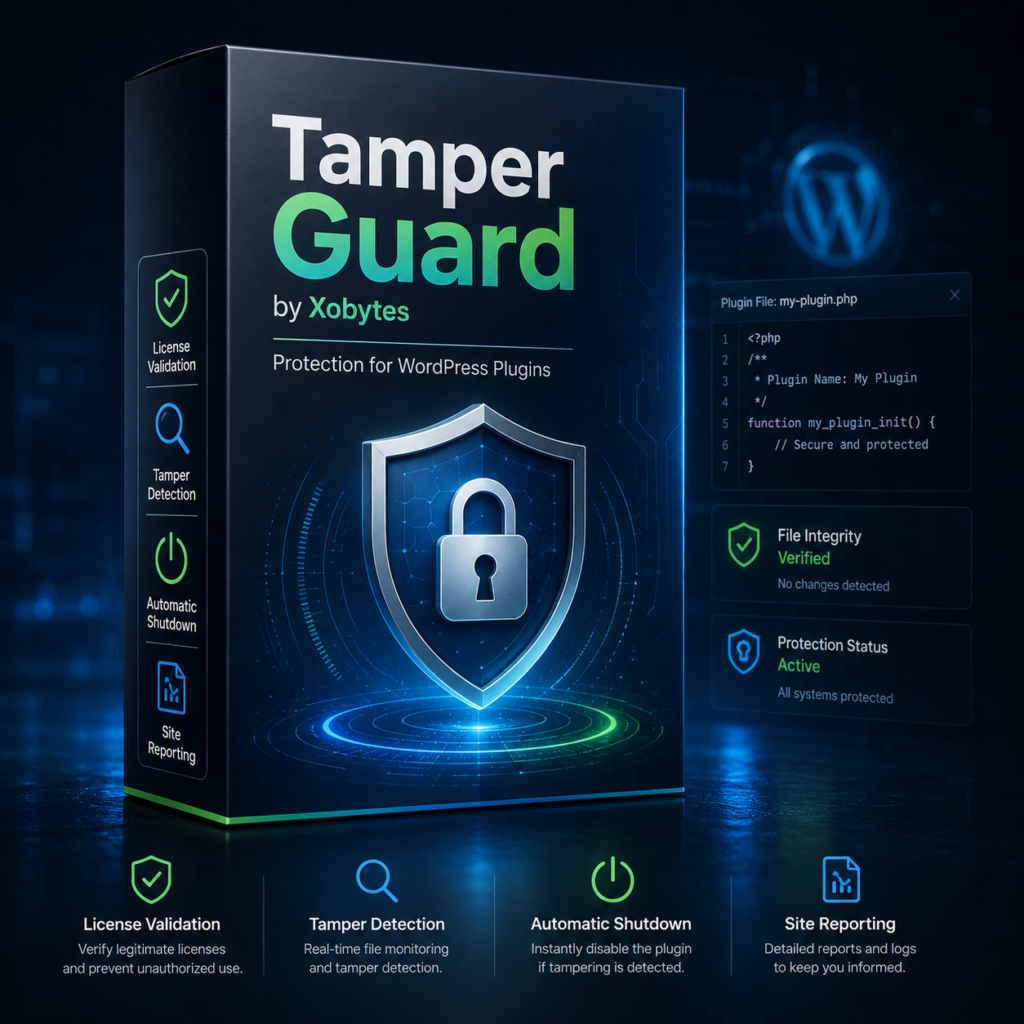
Tamper Guard installation instructions are simple if you follow the correct setup order. First, you install the Tamper Guard Injector. Next, you enter your Xobytes license key. Then, the injector installs the detector and lets you choose the WordPress plugin you want to protect.
Tamper Guard by Xobytes was built for developers who sell commercial WordPress plugins. It helps protect your plugin files from unwanted changes by adding file integrity checks, tamper detection, shutdown protection, and site reporting.
Ready to get started? You can view the official Tamper Guard by Xobytes product page.
What Tamper Guard Does
Tamper Guard helps protect commercial WordPress plugins after you build them. WordPress gives users access to plugin files, which works well for open development. However, that can create problems when you sell a paid plugin with premium features, license checks, permissions, or protected code.
Because of that, Tamper Guard adds a protection layer to your completed plugin. If someone changes protected files, Tamper Guard can shut down the protected plugin and show a clear message that explains what changed.
Before You Start
Before you follow these Tamper Guard installation instructions, make sure you have everything ready. This will help the setup go smoothly.
You Will Need:
- The Tamper Guard Injector ZIP file
- A valid Xobytes license key – Found Here
- Administrator access to your WordPress website
- The completed plugin you want to protect
- A clean backup of the plugin before protection
Step 1: Log In to Your WordPress Dashboard
First, log in to the WordPress website where your completed plugin is installed. You need to use an administrator account because only admins can upload, activate, and manage plugins.
After you log in, go to your main WordPress dashboard.
Step 2: Upload the Tamper Guard Injector ZIP File
Next, go to:
Plugins > Add New Plugin > Upload Plugin
Then, click Choose File and select the Tamper Guard Injector ZIP file from your computer.
After that, click Install Now. WordPress will upload the ZIP file and install the injector plugin.
Step 3: Activate the Tamper Guard Injector
Once WordPress finishes installing the ZIP file, click Activate Plugin. This activates the Tamper Guard Injector.
The injector is the first part of the system. It checks your license and installs the detector only after your license passes validation. Therefore, users cannot accidentally install the detector first.
Step 4: Enter Your Xobytes License Key
After activation, open the injector page. You can find it under:
Tools > Tamper Injector
Now paste your Xobytes license key into the license field. Then, click the license activation or install button.
The injector sends your license key and site details to the Xobytes license system. If the license is valid, the setup continues. If the license fails, the detector will not install.
Step 5: Let the Injector Install the Detector
After your license validates, the injector installs the Tamper Guard Detector automatically. Then, the injector will deactivate itself.
At that point, the detector becomes the main visible plugin inside your WordPress Plugins dashboard. This keeps the install process clean and prevents confusion.
After this step, you should see:
Xobytes Tamper Detector
in your installed plugins list.
Step 6: Open the Tamper Guard Detector
Next, open the detector settings page. You can usually find it under your WordPress admin tools area.
The detector page lets you choose which installed WordPress plugin you want to protect. It also lets you enter product details, protection settings, and shutdown options.
Step 7: Choose the Plugin You Want to Protect
Now select the plugin you want Tamper Guard to protect. This should be the completed commercial plugin you plan to sell or deliver to customers.
For example, you may protect:
- A paid WordPress plugin
- A WooCommerce extension
- A SaaS-connected plugin
- An AI software plugin
- A custom plugin built for clients
- A private business tool
You can choose the plugin from the dropdown. If needed, you can also enter the main plugin file path manually.
Step 8: Enter Product Details
After you choose the plugin, enter the product details. These settings help Tamper Guard build the protection files correctly.
Common Settings Include:
- Product ID
- Plugin version
- Hub report URL
- Report or manifest secret
- License key option name
- Tamper response mode
- Admin page lock patterns
For strict protection, use the strict shutdown option. This tells Tamper Guard to block and deactivate the protected plugin when it detects file changes.
Step 9: Inject Tamper Guard
Once the settings look correct, click the button to inject Tamper Guard.
Tamper Guard will then back up the original main plugin file, copy the guard files, write the guard configuration, inject the marked bootstrap block, and create the signed manifest.
You do not need to manually edit code. The detector handles that process for you.
Step 10: Test the Protected Plugin
After injection, test the protected plugin before you sell it. First, make sure the plugin works normally. Then, confirm that the protection files exist inside the plugin folder.
Next, make a clean backup. After that, you can safely test a file change on a development site. If Tamper Guard detects the change, it should shut down the protected plugin and show a lock message.
The message may show the changed file and tell the user to return the selected file back to its original state.
Step 11: Zip the Protected Plugin
After testing, zip the protected plugin folder. This ZIP file is the version you can sell or deliver to customers.
When a customer installs your plugin, Tamper Guard is already inside it. So, if someone tries to change protected files later, the plugin can shut down and explain why it locked.
What Happens If Someone Changes the Protected Plugin?
If someone edits, removes, or changes protected files, Tamper Guard checks the file integrity. Then, it compares the current files to the clean protected version.
If the files do not match, Tamper Guard can shut down the protected plugin pages. It can also show a WordPress-style message that lists the affected file.
This helps protect your product because edited code does not keep running like normal.
Common Installation Problems
The Detector Does Not Install
If the detector does not install, check your license key first. Also, make sure your website can connect to the Xobytes license server.
In addition, check your file permissions. The injector needs permission to copy the detector files into your WordPress plugins folder.
The Wrong ZIP File Was Uploaded
If WordPress says the plugin does not have a valid header, you may have uploaded the wrong ZIP file. Upload the Tamper Guard Injector ZIP file, not a source folder or detector-only package.
The Protected Plugin Still Loads After Testing
If the protected plugin still loads after a file change, rerun the detector injection process. Also, clear your server cache or PHP OPcache if your hosting provider uses one.
The Product Card Is Not Showing on Lock Pages
If the product card does not show on lock pages, update to the newest Tamper Guard version. Then, rerun protection on the selected plugin so the newest guard files and watchdog files are copied into the protected plugin.
Best Practices
Always protect a clean version of your plugin. Also, keep a backup before you inject Tamper Guard. This makes it easier to restore files if you need to update your plugin later.
In addition, test the protected plugin on a staging site before sending it to customers. That way, you can confirm that the plugin loads correctly, detects changes, and shows the correct lock message when tampering appears.
Final Thoughts
These Tamper Guard installation instructions help you install the injector, validate your license, install the detector, and protect a completed WordPress plugin.
Tamper Guard gives plugin sellers a simple way to add file integrity checks and shutdown protection without manually editing plugin code. As a result, you can protect your commercial WordPress plugin, zip it, and sell it through your normal sales channels.
To get started, visit the Tamper Guard software page.