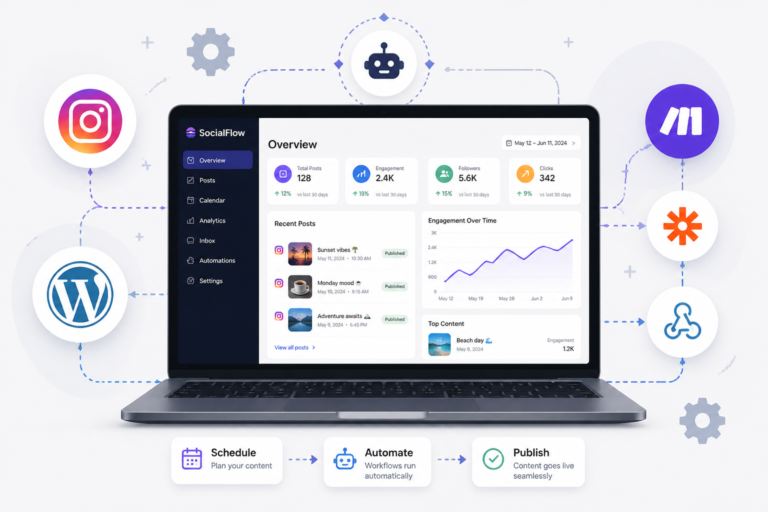
In today’s fast-paced digital landscape, automating your social media presence is crucial for effective marketing. Specifically, automating Instagram posts from WordPress can save time and enhance engagement. This guide will explore the best plugins and tips for seamless integration of Instagram auto posting into your WordPress site.
Why Automate Instagram Posts?
Automating your Instagram posts from WordPress offers several benefits. First, it allows you to maintain a consistent posting schedule without the daily hassle. Next, it frees up your time, enabling you to focus on creating quality content rather than managing posts. Finally, automation can help you analyze engagement metrics more effectively, allowing for data-driven adjustments to your strategy.
Top Plugins for Automating Instagram Posts
To make this easier, here are some of the top plugins that can help you automate Instagram posts from WordPress:
- Social Media Autopilot With AI: This plugin allows you to automate posting across multiple social platforms, including Instagram. It offers advanced scheduling features and analytics.
- WordPress Instagram Auto Poster: A straightforward option that connects your WordPress site to Instagram, automatically sharing your posts as they go live.
- Revive Old Posts: This plugin helps you share old blog posts on Instagram, keeping your content alive and engaging your audience over time.
- Instagram Feed Pro: While primarily a feed plugin, it allows for scheduled posting, making it a versatile option for those looking to display and promote their content.
How to Set Up Instagram Auto Posting
To effectively automate Instagram posts from WordPress, follow these steps:
For useful background on this topic, see Top WordPress Instagram Auto Poster Plugins for Easy Social Automation.
- Choose and Install a Plugin: Select one of the plugins mentioned above and install it through your WordPress dashboard.
- Connect Your Instagram Account: Most plugins will require you to connect your Instagram account via API or OAuth for seamless integration.
- Configure Your Settings: Set your posting schedule, select post formats, and customize your captions to match your brand voice.
- Monitor Engagement: Regularly check the analytics provided by your plugin to understand which types of posts perform best and adjust your strategy accordingly.
Best Practices for Instagram Automation
While automating Instagram posts, keep the following best practices in mind:
- Maintain Authenticity: Ensure that your automated posts still reflect your brand’s voice and personality.
- Engage with Your Audience: Automation should not replace human interaction. Regularly respond to comments and messages to build community.
- Monitor Compliance: Always stay updated on Instagram’s API policies to avoid account restrictions due to excessive automation.
Conclusion
In conclusion, automating Instagram posts from WordPress can significantly enhance your social media strategy. By utilizing the right plugins and adhering to best practices, you can save time, engage your audience more effectively, and analyze your performance with ease. Start implementing these strategies today, and watch your engagement grow!
Understanding Instagram’s API Policies
Before diving into automation, it’s essential to understand Instagram’s API policies. Instagram has strict rules regarding automation to ensure user safety and content authenticity. Familiarizing yourself with these guidelines will help you avoid potential pitfalls:
- Rate Limits: Instagram imposes limits on how many posts you can publish in a given timeframe. Exceeding these limits can lead to temporary or permanent bans.
- Content Restrictions: Ensure that your automated posts comply with Instagram’s content guidelines, avoiding prohibited content such as spammy promotions or misleading information.
- Authenticity: Automated content should still reflect genuine engagement and authenticity. Avoid using overly promotional language or repetitive hashtags.
Choosing the Right Plugin: A Comparison
When selecting a plugin for automating Instagram posts from WordPress, consider the following factors:
- User Interface: Choose a plugin with an intuitive interface that makes it easy to schedule and manage posts.
- Features: Look for plugins that offer additional features such as analytics, hashtag suggestions, and post previews.
- Support and Updates: Opt for plugins that are regularly updated and offer customer support to resolve any issues you may encounter.
Here’s a brief comparison of the mentioned plugins:
For a practical companion to this section, explore How to Automate WooCommerce Software Licensing: Top Plugins & Features for 2024.
| Plugin | Key Features | Best For |
|---|---|---|
| Social Media Autopilot With AI | Multi-platform posting, advanced analytics | Users looking for comprehensive automation |
| WordPress Instagram Auto Poster | Simple setup, automatic sharing | Beginners seeking straightforward solutions |
| Revive Old Posts | Sharing old content, engagement tracking | Marketers wanting to repurpose existing content |
| Instagram Feed Pro | Feed display, scheduled posting | Users wanting to showcase their feed while posting |
Practical Implementation Steps
Once you’ve selected a plugin, follow these practical steps to implement Instagram automation effectively:
- Configure Your Plugin: After installation, navigate to the plugin settings and connect your Instagram account. This may involve authenticating your account through Instagram’s API.
- Set Up Your Posting Schedule: Determine the best times for your audience by analyzing when they are most active. Schedule your posts accordingly to maximize engagement.
- Create Engaging Content: Focus on high-quality images and compelling captions. Use tools like Canva for designing visually appealing graphics that align with your brand.
- Utilize Hashtags Wisely: Research relevant hashtags that resonate with your target audience. Avoid overloading your posts with hashtags; instead, use a mix of popular and niche tags.
- Test and Optimize: Regularly review your analytics to see which posts perform best. Adjust your strategy based on engagement metrics, such as likes, comments, and shares.
Common Challenges and Solutions
While automating Instagram posts can streamline your workflow, you may encounter some challenges. Here are a few common issues and their solutions:
Related XoBytes Products
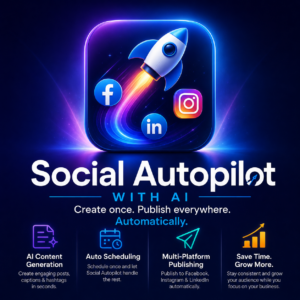
Social Media Autopilot With AI by XoBytes.com
$19.99
Xobytes Social Autopilot is a WordPress social media autoposter that helps schedule and promote posts, pages, WooCommerce products,…
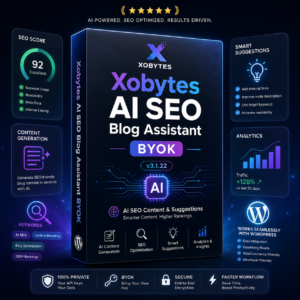
AI SEO Data & Automatic Blog Writer for WordPress by XoBytes
$19.99
Turn your WordPress site, Google Search Console data, and SEO opportunities into smarter blog posts, pages, titles, meta…
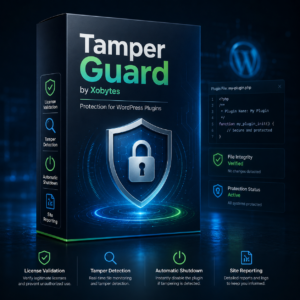
Tamper Guard by XoBytes | WordPress Plugin Tamper Detector
$25.00
Protect your commercial WordPress plugins with license-based tamper detection, file integrity monitoring, automatic shutdown protection, and site reporting.…
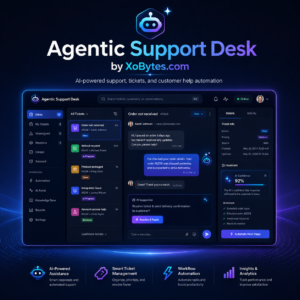
Agentic Support Desk for WordPress by XoBytes.com
$19.99
Agentic Support Desk by Xobytes is an AI-powered WordPress support desk built for software sellers, WooCommerce stores, agencies,…

Plugin Update Server for WordPress by XoBytes.com
$25.00
Plugin Update Server by XoBytes lets WordPress plugin sellers deliver private plugin updates directly to customer dashboards. Upload…
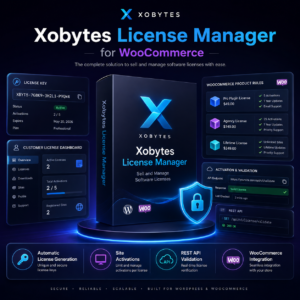
License manager for WooCommerce by XoBytes.com
$25.00
Xobytes License Manager for WooCommerce is a powerful WooCommerce license manager plugin that lets you sell software licenses,…
Product 1 of 6
- Low Engagement: If your automated posts are not receiving engagement, consider revisiting your content strategy. Experiment with different types of content, such as videos or user-generated content.
- Technical Issues: If you face connectivity issues between WordPress and Instagram, check for plugin updates or consult the plugin’s support documentation for troubleshooting tips.
- Content Overlap: Ensure that your automated posts do not overlap with other scheduled content. Use a content calendar to plan your posts and maintain variety.
Enhancing Your Automation Strategy
To further enhance your Instagram automation strategy, consider these additional tips:
- Collaborate with Influencers: Partner with influencers to reach a broader audience. Use automation to schedule collaborative posts, ensuring they align with your branding.
- Run Contests and Giveaways: Promote contests or giveaways through your automated posts to increase engagement and attract new followers.
- Leverage Instagram Stories: While automation primarily focuses on feed posts, consider integrating Instagram Stories into your strategy to provide real-time engagement.
Enhancing Your Automation Strategy
To further enhance your Instagram automation strategy, consider these additional tips:
Continue with How to Secure and Automate Plugin Updates for Your WordPress Site for additional XoBytes guidance.
- Collaborate with Influencers: Partner with influencers to reach a broader audience. Use automation to schedule collaborative posts, ensuring they align with your branding.
- Run Contests and Giveaways: Promote contests or giveaways through your automated posts to increase engagement and attract new followers.
- Leverage Instagram Stories: While automation primarily focuses on feed posts, consider integrating Instagram Stories into your strategy to provide real-time engagement.
Common Challenges and Solutions
While automating Instagram posts can streamline your workflow, you may encounter some challenges. Here are a few common issues and their solutions:
- Low Engagement: If your automated posts are not receiving engagement, consider revisiting your content strategy. Experiment with different types of content, such as videos or user-generated content.
- Technical Issues: If you face connectivity issues between WordPress and Instagram, check for plugin updates or consult the plugin’s support documentation for troubleshooting tips.
- Content Overlap: Ensure that your automated posts do not overlap with other scheduled content. Use a content calendar to plan your posts and maintain variety.
Practical Implementation Steps
Once you’ve selected a plugin, follow these practical steps to implement Instagram automation effectively:
- Configure Your Plugin: After installation, navigate to the plugin settings and connect your Instagram account. This may involve authenticating your account through Instagram’s API.
- Set Up Your Posting Schedule: Determine the best times for your audience by analyzing when they are most active. Schedule your posts accordingly to maximize engagement.
- Create Engaging Content: Focus on high-quality images and compelling captions. Use tools like Canva for designing visually appealing graphics that align with your brand.
- Utilize Hashtags Wisely: Research relevant hashtags that resonate with your target audience. Avoid overloading your posts with hashtags; instead, use a mix of popular and niche tags.
- Test and Optimize: Regularly review your analytics to see which posts perform best. Adjust your strategy based on engagement metrics, such as likes, comments, and shares.
Choosing the Right Plugin: A Comparison
When selecting a plugin for automating Instagram posts from WordPress, consider the following factors:
- User Interface: Choose a plugin with an intuitive interface that makes it easy to schedule and manage posts.
- Features: Look for plugins that offer additional features such as analytics, hashtag suggestions, and post previews.
- Support and Updates: Opt for plugins that are regularly updated and offer customer support to resolve any issues you may encounter.
Understanding Instagram’s API Policies
Before diving into automation, it’s essential to understand Instagram’s API policies. Instagram has strict rules regarding automation to ensure user safety and content authenticity. Familiarizing yourself with these guidelines will help you avoid potential pitfalls:
- Rate Limits: Instagram imposes limits on how many posts you can publish in a given timeframe. Exceeding these limits can lead to temporary or permanent bans.
- Content Restrictions: Ensure that your automated posts comply with Instagram’s content guidelines, avoiding prohibited content such as spammy promotions or misleading information.
- Authenticity: Automated content should still reflect genuine engagement and authenticity. Avoid using overly promotional language or repetitive hashtags.
Frequently Asked Questions
Here are some common questions regarding automating Instagram posts from WordPress:
- What are the best WordPress plugins for Instagram auto posting? Some of the top plugins include the WordPress Instagram Auto Poster plugin, Social Media Autopilot With AI, and other reliable automation tools that help schedule and publish posts automatically.
- How do I set up automatic Instagram posting on WordPress? Install a suitable plugin, connect your Instagram account via API or OAuth, configure your posting schedule, and customize post content to ensure seamless automation.
- Can I automate Instagram posts for multiple accounts using WordPress? Yes, many plugins support multiple account management, allowing you to automate posts across different Instagram profiles from your WordPress dashboard.
- Are there any limitations or risks with auto posting to Instagram from WordPress? Auto posting tools must comply with Instagram’s API policies. Excessive automation or spammy behavior can lead to account restrictions. Use reputable plugins and follow best practices.