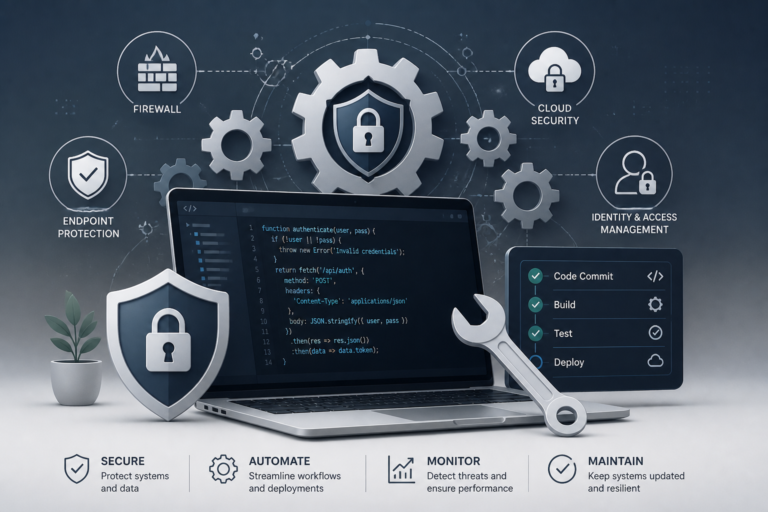
Keeping your WordPress site secure is crucial, and one of the best ways to achieve this is by effectively managing plugin updates. In this guide, we will explore how to secure and automate plugin updates for your WordPress site. By following best practices and utilizing the right tools, you can enhance your site’s performance and security.
Plugin updates are essential for maintaining the functionality and security of your WordPress site. However, managing these updates can be a daunting task, especially for those who are not technically inclined. Fortunately, there are various tools and strategies available to help you automate and secure this process.
Why Plugin Updates Matter
Plugins extend the functionality of your WordPress site, but they can also introduce vulnerabilities if not kept updated. Regularly updating plugins ensures that you benefit from the latest features and security patches. Failing to do so can leave your site exposed to potential threats and performance issues.
Benefits of Automating Plugin Updates
- Time-Saving: Automation reduces the time spent on manual updates.
- Consistency: Ensures that updates are applied regularly without fail.
- Enhanced Security: Reduces the window of vulnerability by applying updates promptly.
To make this easier, let’s dive into the steps you can take to secure and automate plugin updates effectively.
Steps to Secure and Automate Plugin Updates
1. Backup Your WordPress Site
Before making any changes, always back up your site. This will ensure that you can restore your site in case anything goes wrong during the update process. Various plugins like UpdraftPlus or BackupBuddy can help you automate backups.
2. Enable Automatic Updates
WordPress allows you to enable automatic updates for plugins. You can do this by navigating to your WordPress dashboard, going to Plugins, and selecting the option to enable auto-updates for each plugin. However, it’s essential to monitor these updates to ensure they do not conflict with your theme or other plugins.
3. Use Automation Tools
Consider using automation tools like the Plugin Update Server to manage your updates. This tool not only automates the update process but also allows you to deliver private plugin updates directly to customer dashboards.
Moreover, security plugins such as Tamper Guard can protect your plugins from tampering and unauthorized modifications. This adds an extra layer of security to your update process.
4. Monitor Plugin Integrity
To prevent plugin tampering, it’s crucial to monitor the integrity of your plugins. Tools like Tamper Guard can help detect unauthorized changes and alert you to any potential issues.
5. Schedule Regular Manual Checks
While automation is beneficial, it’s still important to conduct regular manual checks. This ensures that everything is functioning correctly and allows you to address any issues that automated tools might miss.
Common Pitfalls to Avoid
When automating plugin updates, be aware of the following pitfalls:
For a practical companion to this section, explore Mastering WordPress Plugin Updates: Best Practices and Automation Tools.
- Over-reliance on automation without periodic manual verification.
- Ignoring plugin security best practices during updates.
- Failing to monitor plugin integrity after updates.
- Using outdated or incompatible update tools.
- Neglecting to back up before major plugin updates.
Conclusion
In conclusion, securing and automating plugin updates for your WordPress site is essential for maintaining its health and security. By following the steps outlined in this guide, you can streamline your update process and protect your site from vulnerabilities. Always remember to back up your site and monitor the integrity of your plugins to ensure a smooth operation.
Best Practices for Managing Plugin Updates
While automating plugin updates can significantly enhance your site’s security and performance, following best practices can further streamline the process and minimize risks. Here are some recommendations:
- Read Plugin Change Logs: Before updating any plugin, review the change logs provided by the developers. This will help you understand what changes have been made, including new features, bug fixes, and potential compatibility issues.
- Test Updates in a Staging Environment: If possible, set up a staging site to test plugin updates before applying them to your live site. This allows you to identify any conflicts or issues without affecting your users.
- Limit the Number of Plugins: Reducing the number of plugins you use can decrease the chances of conflicts and vulnerabilities. Only keep essential plugins that provide significant value to your site.
Comparing Automation Tools for Plugin Updates
There are various tools available to automate plugin updates, each with its unique features and benefits. Here’s a comparison of popular options:
| Tool | Key Features | Best For |
|---|---|---|
| Plugin Update Server | Automates updates, delivers private updates to customer dashboards | Developers managing multiple client sites |
| WP Rollback | Allows rolling back to previous versions of plugins | Users needing to revert updates due to compatibility issues |
| ManageWP | Centralized management for multiple WordPress sites, including updates | Agencies managing several client websites |
| InfiniteWP | Bulk updates for plugins, themes, and WordPress core | Users with multiple sites looking for an all-in-one solution |
Implementation Steps for Setting Up Automated Plugin Updates
To successfully implement automated plugin updates on your WordPress site, follow these detailed steps:
- Access Your WordPress Dashboard: Log in to your WordPress admin area.
- Navigate to Plugins: Click on the ‘Plugins’ menu item on the left sidebar.
- Enable Auto-Updates: For each plugin, click on the ‘Enable Auto-updates’ link. You can also bulk enable updates by checking multiple plugins and selecting the option from the bulk actions dropdown.
- Install a Backup Plugin: If you haven’t already, install a backup plugin like UpdraftPlus. Configure it to create regular backups of your site.
- Set Up Monitoring: Install a security plugin such as Tamper Guard to monitor plugin integrity and alert you of any unauthorized changes.
- Schedule Regular Reviews: Set a calendar reminder to review your plugins and updates at least once a month to ensure everything is functioning as expected.
Related XoBytes Products

Plugin Update Server for WordPress by XoBytes.com
$25.00
Plugin Update Server by XoBytes lets WordPress plugin sellers deliver private plugin updates directly to customer dashboards. Upload…
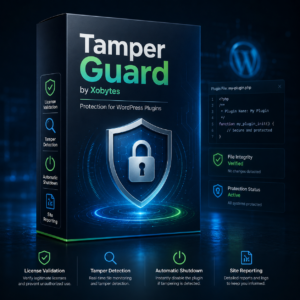
Tamper Guard by XoBytes | WordPress Plugin Tamper Detector
$25.00
Protect your commercial WordPress plugins with license-based tamper detection, file integrity monitoring, automatic shutdown protection, and site reporting.…
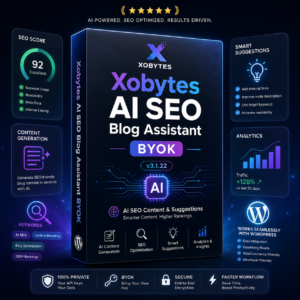
AI SEO Data & Automatic Blog Writer for WordPress by XoBytes
$19.99
Turn your WordPress site, Google Search Console data, and SEO opportunities into smarter blog posts, pages, titles, meta…
Choosing the Right Plugins for Your Site
Selecting the right plugins is crucial for the overall health of your WordPress site. Here are some criteria to consider:
- Reputation: Choose plugins with good reviews and a strong track record of updates and support.
- Compatibility: Ensure the plugin is compatible with your version of WordPress and other plugins you are using.
- Support: Look for plugins that offer reliable customer support and documentation.
By following these guidelines and implementing the recommended practices, you can effectively secure and automate plugin updates, ensuring your WordPress site remains safe and efficient.
Continue with How to Protect Your WordPress Site with Effective Software Integrity Testing Tools for additional XoBytes guidance.
Implementing a Version Control System
Using a version control system (VCS) can greatly enhance your ability to manage plugin updates. A VCS allows you to track changes, revert to previous versions, and collaborate with others more efficiently. Here’s how you can implement a VCS for your WordPress site:
- Choose a VCS: Popular options include Git and Subversion. Git is widely used due to its flexibility and powerful branching capabilities.
- Set Up a Repository: Create a repository for your WordPress site. This can be done locally or on platforms like GitHub or Bitbucket.
- Commit Changes: Regularly commit changes to your repository after updating plugins. Include descriptive messages to keep track of what changes were made and why.
- Branching Strategy: Use branches to test updates. Create a new branch for each plugin update, allowing you to test the update without affecting the live site.
- Merge Changes: Once you’ve tested the updates and confirmed they’re working correctly, merge them back into the main branch.
Utilizing a Staging Environment Effectively
A staging environment is a replica of your live site where you can test changes without impacting your users. Here’s how to set up and use a staging environment for plugin updates:
- Choose a Staging Solution: Many hosting providers offer built-in staging environments. Alternatively, you can use plugins like WP Staging or Duplicator.
- Clone Your Site: Create a clone of your live site in the staging environment. Ensure that it mirrors your live site as closely as possible.
- Test Plugin Updates: Update plugins in the staging environment first. Check for functionality, compatibility, and any potential issues.
- Document Findings: Keep notes on any issues encountered during testing. This documentation will be helpful when applying updates to your live site.
- Deploy Changes: Once you’re satisfied with the updates in the staging environment, replicate the changes on your live site.
Regular Maintenance and Performance Optimization
In addition to securing and automating plugin updates, regular maintenance is key to keeping your WordPress site running smoothly. Here are some maintenance tasks to consider:
- Database Optimization: Regularly optimize your WordPress database to improve performance. Plugins like WP-Optimize can help automate this process.
- Remove Unused Plugins: Deactivate and delete plugins that are no longer in use. This reduces potential vulnerabilities and improves site performance.
- Monitor Site Speed: Use tools like Google PageSpeed Insights or GTmetrix to monitor your site’s speed. Identify and address any issues that may arise due to plugin updates.
- Review Security Settings: Regularly review your security settings and update your security plugins to ensure maximum protection.
Choosing the Right Automation Strategy
When it comes to automating plugin updates, selecting the right strategy is crucial. Here are some factors to consider:
- Site Size: For larger sites with many plugins, consider using comprehensive management tools like ManageWP or InfiniteWP for better control.
- Technical Expertise: If you’re less technically inclined, opt for user-friendly tools that offer guided interfaces.
- Frequency of Updates: Evaluate how often your plugins are updated. For frequently updated plugins, automation is more critical to maintain security.
- Backup Solutions: Ensure your automation strategy includes reliable backup solutions to safeguard your site during updates.
Frequently Asked Questions
Here are some common questions regarding plugin updates:
- Why is plugin update management important for WordPress security? Proper plugin update management ensures that security patches and new features are applied promptly, reducing vulnerabilities and protecting your site from cyber threats.
- What tools can help automate plugin updates on WordPress? Tools like the Plugin Update Server and security plugins such as Tamper Guard can automate updates and monitor plugin integrity, enhancing security and efficiency.
- How can I prevent plugin tampering and ensure integrity? Using file integrity monitoring and tamper detection tools like Tamper Guard helps identify unauthorized modifications and automatically protect your plugins.
- Is manual updating still necessary after automation implementation? While automation reduces manual effort, periodic manual checks are recommended to verify system health and address any issues that automated tools might miss.