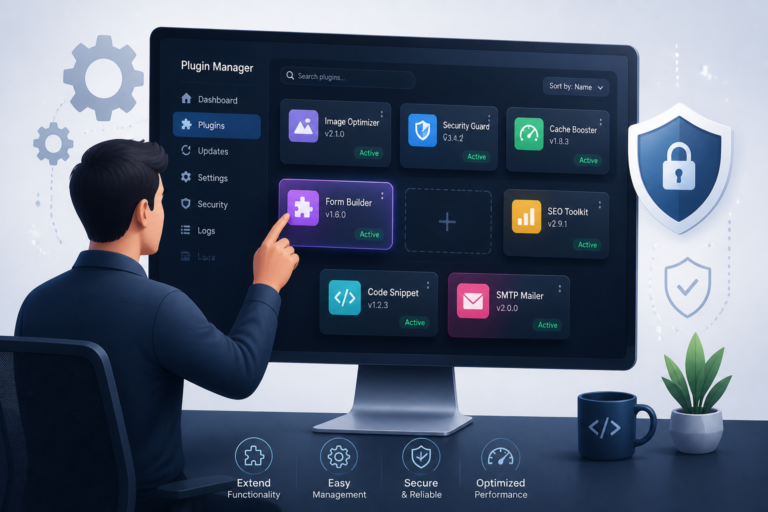
Managing plugins efficiently is crucial for any WordPress site owner. Plugins enhance functionality, but they also require regular updates to ensure security and performance. In this article, we will explore effective strategies and tools for efficient plugin update management in WordPress.
First, let’s understand why managing plugin updates is essential. Regular updates help protect your website from vulnerabilities, improve performance, and ensure compatibility with the latest WordPress versions. However, keeping track of all updates can be overwhelming without the right strategies and tools.
Understanding the Importance of Plugin Updates
Every WordPress site relies on plugins to add features and enhance user experience. However, outdated plugins can lead to security risks and performance issues. Therefore, timely updates are critical. Here are some key reasons why plugin update management is vital:
- Security: Updates often include security patches that protect your site from potential threats.
- Performance: New versions may improve speed and efficiency, leading to a better user experience.
- Compatibility: Updates ensure that plugins work seamlessly with the latest WordPress core updates.
In addition, managing updates can help avoid conflicts between plugins, which can result in site errors or crashes.
Best Practices for Managing Plugin Updates
To manage plugin updates efficiently, consider implementing the following best practices:
- Regularly Monitor Updates: Set a schedule to check for updates weekly or bi-weekly. This habit ensures you stay informed about new releases.
- Read Changelogs: Before updating, review the changelog to understand what changes are being made. This information can help you anticipate any issues.
- Backup Your Site: Always back up your site before performing updates. This step ensures you can restore your site if anything goes wrong.
- Test Updates on a Staging Site: If possible, test updates on a staging site before applying them to your live site. This practice helps identify potential issues.
- Use Update Automation Tools: Consider using tools that automate the update process, which we will discuss later.
Automation Tools for Plugin Updates
Automation can significantly reduce the burden of managing plugin updates. Here are some powerful tools that can help:
- Plugin Update Server: This tool allows you to manage plugin updates easily. It provides a streamlined process for delivering updates directly to customers’ dashboards. Learn more about the Plugin Update Server here.
- Tamper Guard: This plugin monitors your site for unauthorized changes and protects your plugins from tampering. It can automatically shut down compromised plugins, ensuring your site remains secure. Check out Tamper Guard for more information.
- ManageWP: This service offers a comprehensive dashboard for managing multiple WordPress sites. It includes features for automating updates, backups, and performance checks.
- WP Remote: This tool allows you to monitor and manage updates across all your WordPress sites from one location.
To make this easier, integrating these tools into your workflow can save you time and reduce the risk of errors during updates.
Potential Pitfalls to Avoid
While automating updates can save time, it’s important to be aware of common pitfalls:
- Over-reliance on Automation: Automation is helpful, but it should not replace manual checks entirely. Regularly verify the health of your site.
- Ignoring Security Best Practices: Always follow security best practices during updates to avoid vulnerabilities.
- Neglecting Backups: Failing to back up your site before major updates can lead to significant issues if something goes wrong.
Conclusion
Efficient plugin update management is essential for maintaining a secure and high-performing WordPress site. By following best practices and utilizing automation tools, you can streamline your update processes and minimize risks. Remember, regular updates not only enhance security but also improve your site’s overall performance.
Related XoBytes Products

Plugin Update Server for WordPress by XoBytes.com
$25.00
Plugin Update Server by XoBytes lets WordPress plugin sellers deliver private plugin updates directly to customer dashboards. Upload…
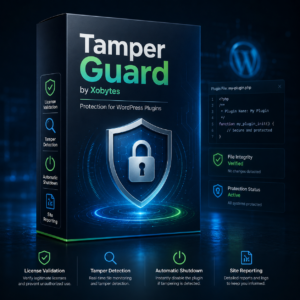
Tamper Guard by XoBytes | WordPress Plugin Tamper Detector
$25.00
Protect your commercial WordPress plugins with license-based tamper detection, file integrity monitoring, automatic shutdown protection, and site reporting.…
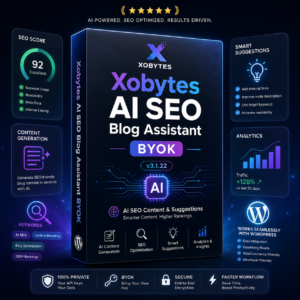
AI SEO Data & Automatic Blog Writer for WordPress by XoBytes
$19.99
Turn your WordPress site, Google Search Console data, and SEO opportunities into smarter blog posts, pages, titles, meta…
Implementing a Plugin Update Strategy
Establishing a clear strategy for plugin updates can significantly enhance your management process. Here are steps to develop an effective plugin update strategy:
- Assess Your Plugin Needs: Start by evaluating which plugins are essential for your site’s functionality. Prioritize updates for these critical plugins.
- Categorize Plugins: Organize your plugins into categories such as essential, optional, and experimental. This classification helps you focus on important updates first.
- Set Update Frequency: Determine how often you will check for updates based on the plugin category. For essential plugins, consider weekly checks, while optional ones can be reviewed monthly.
- Document Changes: Keep a log of updates made, including the date and version changes. This documentation can be invaluable for troubleshooting.
Evaluating Plugin Compatibility
Before updating any plugin, it’s crucial to evaluate its compatibility with your current WordPress version and other plugins. Here are some strategies to assess compatibility:
Continue with Mastering WordPress Plugin Updates: Best Practices and Automation Tools for additional XoBytes guidance.
- Check Plugin Reviews: Look at recent reviews and support threads for the plugin. Users often report compatibility issues that can guide your decision.
- Review Update History: A plugin with a consistent update history is likely to be well-maintained and compatible with the latest WordPress versions.
- Utilize Compatibility Check Tools: Tools like WP Checkup can analyze your site and provide insights on plugin compatibility.
Creating a Backup Plan
A robust backup plan is essential for any update strategy. Here’s how to create an effective backup plan:
- Choose a Backup Solution: Select a reliable backup plugin or service that suits your needs. Popular options include UpdraftPlus and BackupBuddy.
- Schedule Regular Backups: Automate your backup process to run daily or weekly, depending on how frequently you update your content and plugins.
- Store Backups Offsite: Ensure that backups are stored in a secure location, such as cloud storage (e.g., Google Drive, Dropbox) or a remote server.
- Test Your Backups: Periodically test your backups by restoring them to a staging site to ensure they work correctly.
Monitoring Plugin Performance Post-Update
After updating plugins, it’s essential to monitor your site’s performance to identify any issues. Here are some steps to effectively monitor performance:
- Use Performance Monitoring Tools: Tools like Google PageSpeed Insights or GTmetrix can help analyze your site’s speed before and after updates.
- Check Site Functionality: Manually test key functionalities of your site post-update. This includes forms, e-commerce processes, and interactive elements.
- Monitor Error Logs: Keep an eye on your WordPress error logs for any warnings or errors that may arise after updates.
Choosing the Right Plugins
Selecting high-quality plugins can significantly reduce the need for constant updates. Consider these criteria when choosing plugins:
- Developer Reputation: Opt for plugins from reputable developers with a history of regular updates and support.
- User Ratings and Reviews: High ratings and positive reviews often indicate a reliable plugin.
- Active Installations: Plugins with a large number of active installations are likely to be more stable and well-supported.
Frequently Asked Questions
Here are some frequently asked questions about plugin update management:
- Why is plugin update management important for WordPress security? Proper plugin update management ensures that security patches and new features are applied promptly, reducing vulnerabilities and protecting your site from cyber threats.
- What tools can help automate plugin updates on WordPress? Tools like the Plugin Update Server and security plugins such as Tamper Guard can automate updates and monitor plugin integrity, enhancing security and efficiency.
- How can I prevent plugin tampering and ensure integrity? Using file integrity monitoring and tamper detection tools like Tamper Guard helps identify unauthorized modifications and automatically protect your plugins.
- Is manual updating still necessary after automation implementation? While automation reduces manual effort, periodic manual checks are recommended to verify system health and address any issues that automated tools might miss.