
Updating plugins is a critical aspect of maintaining a secure and efficient WordPress website. In this guide, we will explore ensuring safe and seamless plugin updates on WordPress websites. We’ll cover best practices, automation tools, and security measures that help site owners improve performance and reduce vulnerabilities.
To begin with, it’s essential to understand the importance of keeping your plugins up to date. Regular updates not only introduce new features but also patch security vulnerabilities that may expose your site to cyber threats. Therefore, managing these updates effectively is crucial for the health of your website.
Why Regular Plugin Updates Matter
Regular plugin updates play a significant role in maintaining your website’s security and functionality. Here are some key reasons to prioritize plugin updates:
- Security Patches: Plugin developers frequently release updates to fix security vulnerabilities. By applying these updates, you reduce the risk of cyberattacks.
- Improved Performance: Updates often include performance enhancements that can speed up your website and improve user experience.
- New Features: Many updates introduce new features that can enhance your site’s functionality and user engagement.
- Compatibility: Regular updates ensure that your plugins remain compatible with the latest version of WordPress and other plugins.
Best Practices for Updating Plugins
To ensure safe and seamless plugin updates, consider the following best practices:
- Back Up Your Site: Always create a backup of your website before performing any updates. This way, you can restore your site if anything goes wrong during the update process.
- Test Updates in a Staging Environment: If possible, test updates on a staging site before applying them to your live site. This helps identify potential issues without impacting your users.
- Review Update Notes: Always read the update notes provided by the plugin developers. This information can help you understand what changes to expect and whether the update is necessary.
- Schedule Regular Updates: Set a routine for checking and applying updates. Regular maintenance can prevent issues from piling up.
Automation Tools for Plugin Updates
Automation can significantly enhance the efficiency of managing plugin updates. Here are some tools that can help you automate this process:
- Plugin Update Server: This tool allows WordPress plugin sellers to deliver private plugin updates directly to customer dashboards. It simplifies the update process and ensures that users always have the latest version.
- Tamper Guard: This plugin offers file integrity monitoring and tamper detection. By using Tamper Guard, you can automatically protect your plugins from unauthorized modifications.
- ManageWP: This popular service allows you to manage multiple WordPress sites from one dashboard. You can automate plugin updates, backups, and security checks.
- WP Engine: A managed hosting service that automates updates and provides additional security measures to protect your site.
Preventing Plugin Tampering
Plugin tampering can pose serious risks to your website’s security. To prevent this, consider the following strategies:
For a practical companion to this section, explore Mastering WordPress Plugin Updates: Best Practices and Automation Tools.
- File Integrity Monitoring: Use tools like Tamper Guard to monitor your plugins for unauthorized changes. This proactive approach helps you catch issues before they escalate.
- Regular Audits: Conduct regular audits of your plugins to ensure they are up to date and functioning correctly.
- Limit User Access: Only grant access to trusted users to minimize the risk of tampering.
- Implement Security Measures: Use security plugins to enhance your website’s overall security posture.
Common Pitfalls to Avoid
While managing plugin updates, avoid these common pitfalls:
- Over-reliance on Automation: While automation is beneficial, do not neglect periodic manual checks to verify system health.
- Ignoring Security Best Practices: Always prioritize security when updating plugins.
- Using Outdated Tools: Ensure that your update tools are current and compatible with your WordPress version.
- Neglecting Backups: Never skip the backup process before major updates.
Conclusion
In conclusion, ensuring safe and seamless plugin updates on WordPress websites is vital for maintaining security and performance. By following best practices and utilizing automation tools, you can streamline the update process and reduce vulnerabilities. Remember to back up your site, test updates, and monitor for tampering to keep your website secure.
Related XoBytes Products

Plugin Update Server for WordPress by XoBytes.com
$25.00
Plugin Update Server by XoBytes lets WordPress plugin sellers deliver private plugin updates directly to customer dashboards. Upload…
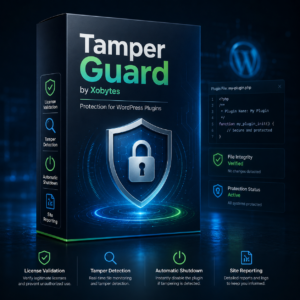
Tamper Guard by XoBytes | WordPress Plugin Tamper Detector
$25.00
Protect your commercial WordPress plugins with license-based tamper detection, file integrity monitoring, automatic shutdown protection, and site reporting.…
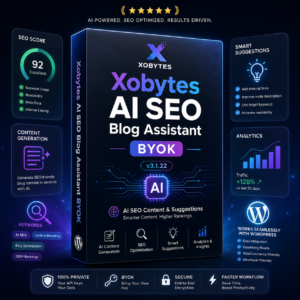
AI SEO Data & Automatic Blog Writer for WordPress by XoBytes
$19.99
Turn your WordPress site, Google Search Console data, and SEO opportunities into smarter blog posts, pages, titles, meta…
Implementing a Comprehensive Update Strategy
To ensure that your WordPress site remains secure and efficient, it’s essential to implement a comprehensive update strategy. This strategy should encompass not only plugin updates but also themes and core WordPress updates. Here are some steps to consider:
- Establish a Regular Update Schedule: Determine a specific frequency for checking and applying updates. This could be weekly, bi-weekly, or monthly, depending on how frequently your plugins are updated.
- Prioritize Critical Updates: Not all updates are created equal. Security updates should be prioritized over feature updates. Keep an eye on the release notes of your plugins to identify critical updates.
- Incorporate User Feedback: Engage with your site’s users to gather feedback on any issues they encounter. This can help you identify which plugins may require immediate updates based on user experience.
Choosing the Right Plugins for Your Site
Not all plugins are created equal, and the choice of plugins can significantly impact your website’s performance and security. Here are some criteria to consider when selecting plugins:
Continue with How to Secure and Automate Plugin Updates for Your WordPress Site for additional XoBytes guidance.
- Developer Reputation: Research the plugin developer’s reputation. Look for plugins that are regularly updated and have positive reviews from users.
- Compatibility: Ensure that the plugin is compatible with your version of WordPress and other plugins you are using. Check the plugin’s changelog for any recent updates or compatibility issues.
- Support and Documentation: Choose plugins that offer robust support and thorough documentation. This can be invaluable if you encounter issues during updates.
Monitoring Plugin Performance Post-Update
After updating your plugins, it’s crucial to monitor your website’s performance to ensure everything is functioning as expected. Here are some steps to take:
- Check Site Functionality: After each update, navigate through your website to ensure all functionalities are working correctly. Pay special attention to forms, e-commerce features, and interactive elements.
- Monitor Site Speed: Use tools like Google PageSpeed Insights or GTmetrix to analyze your site’s speed post-update. If you notice a significant slowdown, consider rolling back the update.
- Review Error Logs: Check your server’s error logs for any issues that may arise after updates. This can help you identify and troubleshoot problems quickly.
Handling Update Failures
Sometimes, updates may lead to unexpected failures. Here’s how to handle such situations effectively:
- Rollback Updates: If an update causes issues, use your backup to restore the previous version of the plugin. Many backup plugins offer one-click restore options.
- Contact Support: If you encounter a problem that you cannot resolve, reach out to the plugin’s support team for assistance. Provide them with detailed information about the issue.
- Document Issues: Keep a log of any issues encountered during updates. This documentation can help you identify patterns and improve your update strategy over time.
Educating Your Team on Update Protocols
If you have a team managing your WordPress site, it’s essential to educate them about the update protocols you’ve established. Here are some key points to cover:
- Importance of Updates: Ensure that your team understands the significance of keeping plugins updated for security and performance.
- Update Procedures: Clearly outline the steps for updating plugins, including backup procedures and testing protocols.
- Reporting Issues: Establish a clear process for reporting any issues that arise during or after updates, ensuring that everyone knows how to communicate effectively.
Frequently Asked Questions
Here are some commonly asked questions regarding plugin updates:
- Why is plugin update management important for WordPress security?
- Proper plugin update management ensures that security patches and new features are applied promptly, reducing vulnerabilities and protecting your site from cyber threats.
- What tools can help automate plugin updates on WordPress?
- Tools like the Plugin Update Server and security plugins such as Tamper Guard can automate updates and monitor plugin integrity, enhancing security and efficiency.
- How can I prevent plugin tampering and ensure integrity?
- Using file integrity monitoring and tamper detection tools like Tamper Guard helps identify unauthorized modifications and automatically protect your plugins.
- Is manual updating still necessary after automation implementation?
- While automation reduces manual effort, periodic manual checks are recommended to verify system health and address any issues that automated tools might miss.