
Managing your WordPress plugins effectively is crucial for maintaining site performance and security. In this guide, we will explore how to automate and secure your WordPress plugin updates to ensure your site remains safe and efficient.
Why Automate Plugin Updates?
Automating plugin updates can save you time and reduce the risk of human error. However, it’s essential to understand the implications of automation in a WordPress environment. For instance, automated updates can lead to compatibility issues if not monitored properly. Therefore, integrating automation with robust security practices is vital.
Understanding the Risks of Manual Plugin Updates
Many WordPress users still rely on manual updates due to concerns about compatibility and security. However, this approach can expose your site to vulnerabilities. For example, outdated plugins can become targets for hackers. Therefore, automating your updates while ensuring security is imperative.
Best Practices for Automating Plugin Updates
To make the process easier, consider the following best practices:
- Backup Your Site: Always create a backup before implementing any updates. This ensures you can restore your site if something goes wrong.
- Test Updates in a Staging Environment: Before applying updates to your live site, test them in a staging environment to catch any compatibility issues.
- Monitor Plugin Performance: After updates, monitor your site’s performance to identify any potential issues early.
Tools for Automating Plugin Updates
There are several tools available that can help you automate your WordPress plugin updates effectively:
- Plugin Update Server: This tool allows WordPress plugin sellers to deliver private updates directly to customer dashboards. Learn more about Plugin Update Server.
- Tamper Guard: This plugin offers tamper detection and file integrity monitoring, ensuring your plugins remain secure post-update. Discover Tamper Guard.
- Automatic Update Scheduling: WordPress allows you to enable automatic updates for plugins directly from the dashboard.
Furthermore, leveraging these tools can significantly enhance your security posture. For example, Tamper Guard can notify you of any unauthorized changes, helping you maintain integrity.
Securing Your Plugin Updates
Securing your plugin updates is as crucial as automating them. Here are some strategies to consider:
- Use Trusted Sources: Always download plugins from reputable sources to minimize the risk of malware.
- Regularly Audit Plugins: Periodically review all installed plugins to ensure they are up-to-date and necessary.
- Implement Security Measures: Use security plugins to add an additional layer of protection against vulnerabilities.
Common Pitfalls to Avoid
While automating and securing your plugin updates, be aware of common pitfalls:
- Over-reliance on automation without periodic manual verification.
- Ignoring plugin security best practices during updates.
- Failing to monitor plugin integrity after updates.
- Using outdated or incompatible update tools.
- Neglecting to back up before major plugin updates.
Conclusion
In conclusion, automating and securing your WordPress plugin updates is essential for maintaining a healthy website. By following best practices, utilizing effective tools, and being aware of potential pitfalls, you can enhance your site’s performance and security. Start implementing these strategies today to ensure your WordPress site remains safe and efficient.
Advanced Strategies for Automating Plugin Updates
While the basic automation practices are essential, there are advanced strategies you can implement to further streamline your plugin update process.
Utilizing Version Control Systems
Implementing a version control system (VCS) such as Git can significantly enhance your plugin management. Here’s how:
For a practical companion to this section, explore Mastering WordPress Plugin Updates: Best Practices and Automation Tools.
- Track Changes: A VCS allows you to track changes made to your plugins, making it easier to identify issues that arise after updates.
- Rollback Capabilities: If an update causes problems, you can quickly revert to a previous version using the VCS.
- Collaboration: If you work with a team, a VCS facilitates collaboration on plugin code, ensuring everyone is on the same page.
Implementing Continuous Integration/Continuous Deployment (CI/CD)
For developers managing multiple sites or complex environments, integrating CI/CD practices can automate testing and deployment of plugin updates:
- Set Up Automated Testing: Before deploying updates, run automated tests to ensure compatibility and functionality.
- Deploy to Staging: Automatically deploy updates to a staging environment for further testing before going live.
- Monitor and Rollback: If issues arise in production, CI/CD tools can help you quickly rollback the update.
Choosing the Right Plugins for Automation
Not all plugins are created equal when it comes to automation. Here are some criteria to consider when selecting plugins for your site:
- Update Frequency: Choose plugins that are regularly updated by their developers, ensuring ongoing support and security patches.
- User Reviews: Check for user feedback and ratings to gauge the reliability and performance of the plugin.
- Compatibility: Ensure the plugin is compatible with your current WordPress version and other plugins you are using.
- Support Availability: Look for plugins that offer good support options, such as forums, documentation, or direct support channels.
Related XoBytes Products
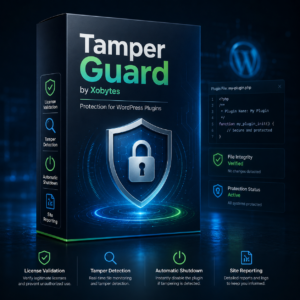
Tamper Guard by XoBytes | WordPress Plugin Tamper Detector
$25.00
Protect your commercial WordPress plugins with license-based tamper detection, file integrity monitoring, automatic shutdown protection, and site reporting.…

Plugin Update Server for WordPress by XoBytes.com
$25.00
Plugin Update Server by XoBytes lets WordPress plugin sellers deliver private plugin updates directly to customer dashboards. Upload…
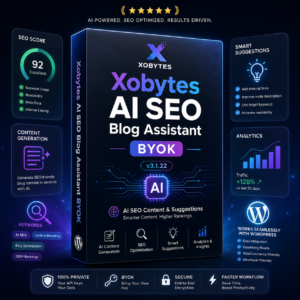
AI SEO Data & Automatic Blog Writer for WordPress by XoBytes
$19.99
Turn your WordPress site, Google Search Console data, and SEO opportunities into smarter blog posts, pages, titles, meta…
Monitoring and Reporting on Plugin Updates
Effective monitoring of plugin updates is crucial for maintaining security. Here are some methods to establish a monitoring system:
- Logging Updates: Keep a log of all updates performed, including dates and any issues encountered.
- Setting Up Alerts: Use monitoring tools to set up alerts for failed updates or security vulnerabilities detected in your plugins.
- Regular Security Audits: Schedule regular audits of your plugins to ensure they are secure and functioning as intended.
Case Study: Successful Automation Implementation
To illustrate the effectiveness of automating and securing plugin updates, consider the following case study:
A small e-commerce site was struggling with frequent downtime due to outdated plugins, leading to lost sales and customer dissatisfaction. After implementing automated updates using a combination of a VCS and a CI/CD pipeline, the site saw:
- Reduced Downtime: Automated testing caught compatibility issues before they affected the live site.
- Increased Security: Regular updates ensured that the site was protected against known vulnerabilities.
- Improved Performance: The site’s performance metrics improved due to the removal of outdated and unnecessary plugins.
This case highlights the importance of not just automating updates but also securing them through proper monitoring and testing practices.
Implementing a Rollback Strategy
Even with automated updates, issues can arise that necessitate reverting to a previous version of a plugin. Implementing a rollback strategy is essential for maintaining site stability. Here are steps to establish an effective rollback plan:
Continue with How to Secure and Automate Plugin Updates for Your WordPress Site for additional XoBytes guidance.
- Backup Regularly: Ensure that you have regular backups of your site, including the database and all files. This will allow you to restore your site to a previous state if an update fails.
- Use a Rollback Plugin: Consider using a rollback plugin, such as WP Rollback, which allows you to revert to older versions of plugins and themes with ease.
- Document Changes: Keep a detailed log of updates and any issues encountered. This will help you identify which updates may need to be rolled back in the future.
Choosing the Right Update Schedule
Automating updates can be beneficial, but the timing of these updates is equally important. Here are some factors to consider when determining your update schedule:
- Traffic Patterns: Schedule updates during off-peak hours to minimize disruption to your users.
- Plugin Update Frequency: Monitor how often your plugins are updated. Critical security updates should be applied as soon as possible, while less urgent updates can be scheduled for less busy times.
- Testing Period: Allow a testing period after major updates to monitor for issues before fully deploying them to your live site.
Evaluating Plugin Performance Post-Update
After automating plugin updates, it’s vital to evaluate the performance of your site. Here are some metrics to monitor:
- Load Times: Use tools like Google PageSpeed Insights or GTmetrix to assess if the update has affected your site’s load times.
- Error Logs: Check your server error logs for any issues that may have arisen from the update.
- User Feedback: Solicit feedback from users regarding site performance and functionality to identify any unnoticed issues.
Comparing Automated Update Methods
When considering automation for plugin updates, you may encounter various methods. Here’s a comparison of popular approaches:
| Method | Pros | Cons |
|---|---|---|
| Built-in WordPress Auto-Updates | Easy to enable; no additional plugins required. | Limited control over which plugins are updated. |
| Third-Party Update Plugins | More customization options; can manage multiple sites. | May introduce compatibility issues; requires regular updates itself. |
| Custom Scripts | Highly customizable; can be tailored to specific needs. | Requires technical knowledge; potential for errors if not coded properly. |
Final Thoughts on Automation and Security
As you implement automation for your WordPress plugin updates, remember that the goal is not just to save time but also to enhance your site’s security and performance. By adopting a comprehensive strategy that includes regular backups, monitoring, and a rollback plan, you can ensure that your website remains robust and resilient against potential threats.
Frequently Asked Questions
Here are some common questions about automating and securing WordPress plugin updates:
- Why is plugin update management important for WordPress security? Proper plugin update management ensures that security patches and new features are applied promptly, reducing vulnerabilities and protecting your site from cyber threats.
- What tools can help automate plugin updates on WordPress? Tools like the Plugin Update Server and security plugins such as Tamper Guard can automate updates and monitor plugin integrity, enhancing security and efficiency.
- How can I prevent plugin tampering and ensure integrity? Using file integrity monitoring and tamper detection tools like Tamper Guard helps identify unauthorized modifications and automatically protect your plugins.
- Is manual updating still necessary after automation implementation? While automation reduces manual effort, periodic manual checks are recommended to verify system health and address any issues that automated tools might miss.