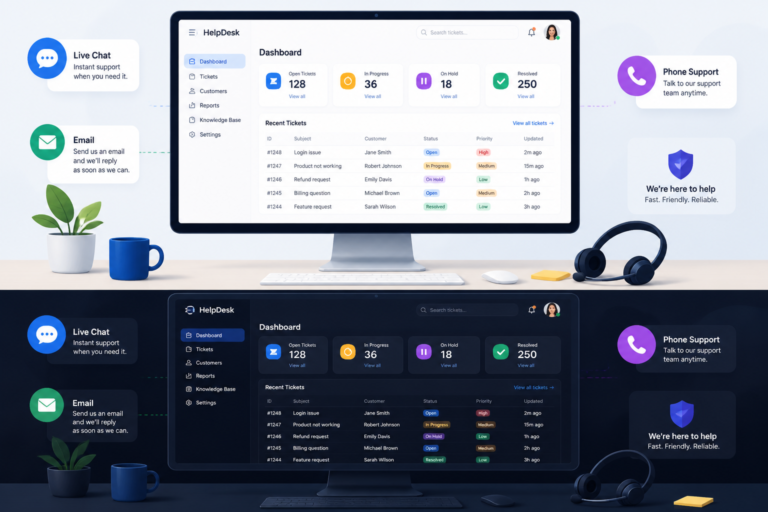
In today’s digital landscape, effective customer support is crucial for any business. Therefore, using the right helpdesk ticket plugin for WordPress can significantly enhance your support system. This ultimate guide will explore the features, setup, and best practices for helpdesk ticket plugins tailored for WordPress.
Why Use a Helpdesk Ticket Plugin?
Helpdesk ticket plugins streamline the process of managing customer inquiries. As a result, they help improve response times, organize support requests, and enhance user satisfaction. Moreover, these plugins often come with features like automation, multi-channel support, and integration capabilities that can simplify your workflow.
Key Features to Look For
When selecting a helpdesk ticket plugin, consider the following essential features:
For useful background on this topic, see Seamless WordPress Support Plugins: Features, Setup & Best Practices.
- Ticket Management: Efficiently track and manage customer inquiries.
- Automation: Automate repetitive tasks to improve efficiency.
- Multi-Channel Support: Handle requests from various channels like email, chat, and social media.
- Knowledge Base Integration: Provide customers with self-service options through FAQs and guides.
- User-Friendly Interface: Ensure ease of use for both customers and support agents.
Popular Helpdesk Ticket Plugins for WordPress
To make this easier, here are some of the top helpdesk ticket plugins available for WordPress:
- Agentic Support Desk: An AI-powered solution that offers automation and robust ticket management.
- WP Support Plus: A versatile plugin with customizable forms and reports.
- Zendesk for WordPress: Integrates seamlessly with Zendesk’s powerful support tools.
- SupportCandy: A free plugin that provides essential ticket management features.
Setting Up Your Helpdesk Ticket Plugin
Setting up a helpdesk ticket plugin on your WordPress site involves a few straightforward steps:
- Choose the Right Plugin: Select a plugin that meets your specific needs.
- Install and Activate: Go to your WordPress admin dashboard, navigate to plugins, and install your chosen helpdesk plugin.
- Configure Settings: Customize settings such as support channels, notifications, and ticket priorities.
- Create a Knowledge Base: Develop a repository of FAQs and guides to help customers self-serve.
- Integrate with Existing Tools: Connect with CRM systems, email marketing tools, or chat services for a seamless experience.
Best Practices for Using Helpdesk Ticket Plugins
To maximize the effectiveness of your helpdesk ticket system, consider these best practices:
- Regularly Update Your Knowledge Base: Keep content fresh and relevant to help customers find answers quickly.
- Train Your Support Team: Ensure your team is well-trained on the plugin features and customer service best practices.
- Monitor Performance: Use analytics tools to track ticket resolution times and customer satisfaction.
- Solicit Feedback: Encourage customer feedback to improve your support processes.
Integrating Helpdesk Plugins with WooCommerce
If you run an eCommerce store using WooCommerce, integrating your helpdesk plugin can enhance your customer service. Many helpdesk plugins offer specific integrations with WooCommerce, enabling you to:
- Manage order-related inquiries directly through the ticket system.
- Automate responses for common order questions.
- Access customer purchase history to provide personalized support.
Conclusion
In conclusion, selecting the right helpdesk ticket plugin for your WordPress site can significantly enhance your customer support capabilities. By focusing on the right features, setup, and best practices, you can create a streamlined support system that meets your customers’ needs.
For a practical companion to this section, explore Top Support Ticket Plugins for WordPress: Improve Customer Support Efficiency.
Comparing Helpdesk Ticket Plugins
When choosing a helpdesk ticket plugin for your WordPress site, it’s essential to compare various options based on specific criteria. Here are some key comparison points:
- Pricing: Evaluate the cost of each plugin, including any subscription fees, one-time payments, or additional costs for premium features.
- Scalability: Consider whether the plugin can grow with your business. Look for options that can handle increasing ticket volume and offer advanced features as needed.
- Customization: Review how customizable the plugin is. Can you tailor the ticket forms, notifications, and workflows to suit your brand and operational needs?
- Support and Documentation: Check the level of customer support provided by the plugin developers, as well as the availability of comprehensive documentation and tutorials.
Example Comparison Table
| Plugin Name | Pricing | Key Features | Customization | Support |
|---|---|---|---|---|
| Agentic Support Desk | Starting at $15/month | AI Automation, Multi-Channel Support | High | 24/7 Support |
| WP Support Plus | Free, Pro version $49/year | Custom Forms, Reports | Moderate | Email Support |
| Zendesk for WordPress | Starting at $19/month | Integration with Zendesk, Advanced Analytics | High | Live Chat Support |
| SupportCandy | Free | Basic Ticket Management | Low | Community Support |
Implementation Steps for Helpdesk Ticket Plugins
To ensure a smooth implementation of your chosen helpdesk ticket plugin, follow these steps:
- Define Your Support Workflow: Before installation, outline how your support process will work. Identify ticket types, escalation paths, and response times.
- Install the Plugin: Access your WordPress dashboard, navigate to the plugin section, and install your selected helpdesk plugin.
- Configure Settings: Set up your ticket categories, priority levels, and notification preferences to align with your defined workflow.
- Customize Ticket Forms: Adapt the ticket submission forms to capture necessary information from customers, such as order numbers or issue types.
- Test the System: Run a series of tests to ensure the ticketing system works as expected, including submitting tickets and responding to them.
- Train Your Team: Conduct training sessions for your support team to familiarize them with the new system and best practices for ticket handling.
- Launch and Monitor: Go live with your helpdesk system and monitor its performance. Solicit team feedback to make any necessary adjustments.
Related XoBytes Products
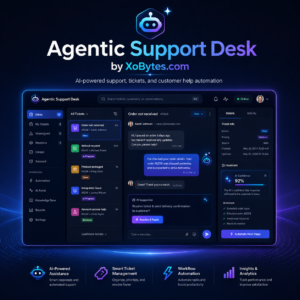
Agentic Support Desk for WordPress by XoBytes.com
$19.99
Agentic Support Desk by Xobytes is an AI-powered WordPress support desk built for software sellers, WooCommerce stores, agencies,…
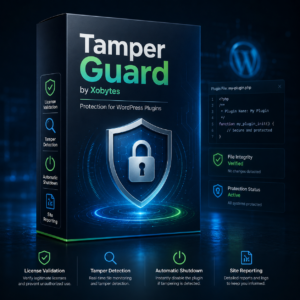
Tamper Guard by XoBytes | WordPress Plugin Tamper Detector
$25.00
Protect your commercial WordPress plugins with license-based tamper detection, file integrity monitoring, automatic shutdown protection, and site reporting.…

Plugin Update Server for WordPress by XoBytes.com
$25.00
Plugin Update Server by XoBytes lets WordPress plugin sellers deliver private plugin updates directly to customer dashboards. Upload…

Agentic Consultant, Product Rep, & Customer Service Agent By XoBytes.com
$19.99
Agentic Consultant for WordPress gives your website a smart AI product rep, customer service agent, and hands-free voice…
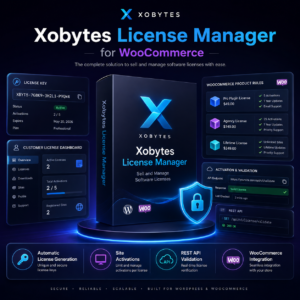
License manager for WooCommerce by XoBytes.com
$25.00
Xobytes License Manager for WooCommerce is a powerful WooCommerce license manager plugin that lets you sell software licenses,…
AI SEO Data & Automatic Blog Writer for WordPress by XoBytes
$19.99
Turn your WordPress site, Google Search Console data, and SEO opportunities into smarter blog posts, pages, titles, meta…
Product 1 of 6
Decision Criteria for Choosing the Right Plugin
Selecting the appropriate helpdesk ticket plugin can be overwhelming. Here are some decision criteria to simplify your choice:
- Business Size: Consider whether the plugin is suitable for your business size. Some plugins cater specifically to small businesses, while others are designed for larger enterprises.
- Feature Set: Assess which features are non-negotiable for your support needs. For instance, if automation is critical, prioritize plugins that excel in this area.
- User Reviews: Research user reviews and ratings on platforms like WordPress.org or independent review sites to gauge real-world performance and customer satisfaction.
- Trial Period: Take advantage of free trials or demo versions to test the plugin’s functionality and user experience before making a commitment.
Advanced Features to Consider
When selecting a helpdesk ticket plugin, beyond the basic features, you may want to explore advanced functionalities that can further enhance your support capabilities. Here are some noteworthy features to consider:
Continue with Ultimate Guide to Support Ticket Plugins for WordPress in 2026 for additional XoBytes guidance.
- Customizable Automation Rules: Look for plugins that allow you to set specific automation rules based on ticket types or customer segments. This can help prioritize urgent issues and streamline responses.
- Reporting and Analytics: Detailed reporting features can provide insights into ticket resolution times, agent performance, and customer satisfaction metrics, helping you make data-driven improvements.
- Multi-Language Support: If you serve a global audience, consider a plugin that supports multiple languages to cater to diverse customer needs.
- Mobile App Access: Some plugins offer mobile applications, allowing support agents to manage tickets on the go, which can be especially useful for remote teams.
Practical Examples of Helpdesk Ticket Management
Understanding how helpdesk ticket plugins function can be enhanced through practical examples. Here are a few scenarios that illustrate their effectiveness:
- Scenario 1: E-commerce Support
A customer submits a ticket regarding a missing order. The helpdesk plugin automatically categorizes the ticket as “Order Inquiry” and assigns it to the appropriate team. The support agent accesses the customer’s order history and resolves the issue promptly, improving customer satisfaction. - Scenario 2: Technical Support
A user reports a technical issue with a plugin. The ticket is tagged with relevant keywords, allowing the support team to quickly identify similar past issues and solutions, enabling faster resolution. - Scenario 3: Feedback Collection
After resolving a ticket, the plugin sends an automated follow-up email asking for feedback on the support experience. This feedback is collected and analyzed to improve service quality.
Implementation Steps for Advanced Features
To fully leverage the advanced features of your helpdesk ticket plugin, follow these implementation steps:
- Identify Key Metrics: Determine which performance metrics are most important for your support team, such as average response time or ticket resolution rate.
- Set Up Automation Rules: Use the plugin’s settings to create automation rules that align with your support workflow. For example, set rules for escalating tickets that remain unresolved for a certain period.
- Customize Reporting Dashboards: Tailor the reporting features to display the metrics that matter most to your team. Regularly review these reports to identify areas for improvement.
- Train Your Team on Advanced Features: Conduct training sessions focused on utilizing advanced features, ensuring your team is equipped to maximize the plugin’s capabilities.
Decision Criteria for Advanced Plugin Features
When evaluating plugins for advanced features, consider the following criteria:
- Integration Capabilities: Ensure the plugin can integrate with other tools you use, such as CRM systems or project management software, to create a cohesive support ecosystem.
- Ease of Use: Advanced features should not complicate the user experience. Look for plugins that maintain a user-friendly interface even with added functionalities.
- Community and Support: A strong user community and responsive support can be invaluable when implementing advanced features, as they can provide assistance and share best practices.
Frequently Asked Questions
Below are some common questions about helpdesk ticket plugins:
- What features should I look for in a WordPress helpdesk ticket plugin? Key features include ticket management, automation, multi-channel support, knowledge base integration, and user-friendly interfaces. Consider plugins that support your specific needs like WooCommerce support or AI automation.
- How do I set up a helpdesk ticket plugin on my WordPress site? Start by choosing a plugin that fits your requirements, install and activate it through the WordPress admin, configure support channels, create knowledge bases, and integrate with your existing tools for seamless support.
- Can I integrate a helpdesk plugin with WooCommerce? Yes, many helpdesk plugins support WooCommerce integration, allowing you to manage customer support, tickets, and order-related queries within a unified support system.
- What is the best helpdesk plugin for small to medium WordPress sites? Popular options include Agentic Support Desk, which offers AI automation, easy setup, and robust ticket management, suitable for small to medium support teams.