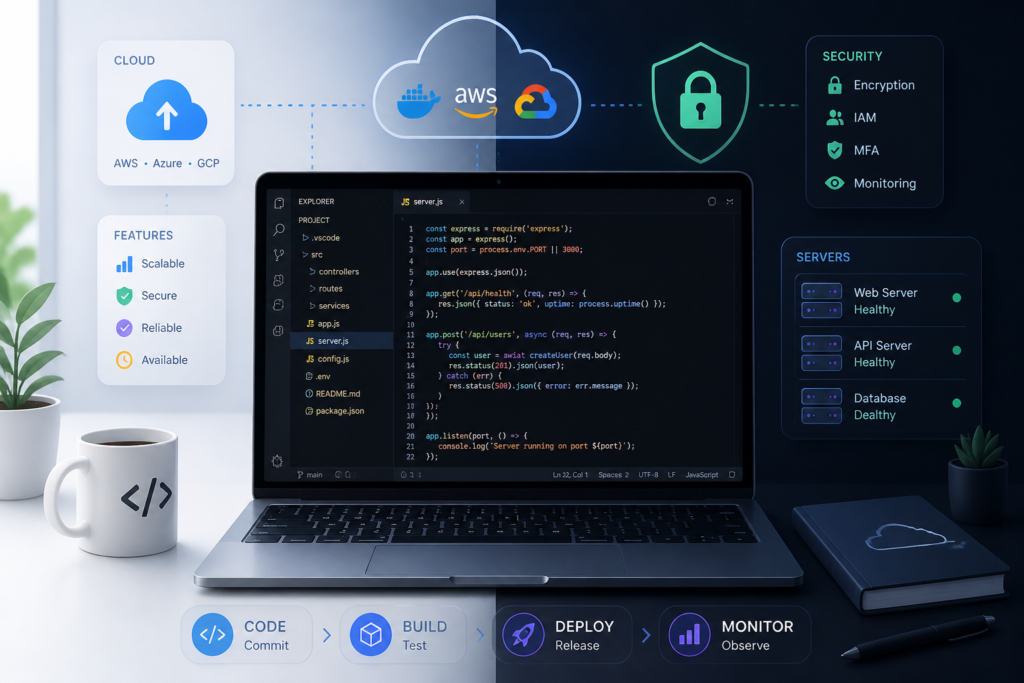
In the world of WordPress development, managing plugin updates efficiently is crucial. For developers and plugin sellers, creating a custom plugin update server is an excellent solution. This step-by-step guide will walk you through the process of setting up a custom plugin update server for WordPress. To enhance your experience, consider using the Plugin Update Server by XoBytes, which is designed to streamline plugin updates and improve security.
With the Plugin Update Server, you can easily deliver private updates directly to your customers. This approach not only simplifies the update process but also ensures that your updates are secure and license-based. Let’s dive into the details of creating your own custom plugin update server.
Why Create a Custom Plugin Update Server?
Creating a custom plugin update server offers several advantages:
- Enhanced Security: By managing your updates, you reduce the risk of unauthorized access and ensure that only legitimate users receive updates.
- License Activation: You can enforce licensing, ensuring that only users who have purchased your plugin can receive updates.
- Faster Delivery: Direct updates to user dashboards mean faster access to the latest features and security patches.
- Control Over Updates: You decide when and how updates are released, giving you full control over your plugin’s lifecycle.
Prerequisites for Setting Up Your Update Server
Before you start, ensure you have the following:
- A working WordPress installation.
- Access to your web server where the update server will be hosted.
- The Plugin Update Server by XoBytes plugin installed on your WordPress site.
Step 1: Install the Plugin Update Server
First, you need to install the Plugin Update Server by XoBytes. This plugin simplifies the process of managing updates and licenses for your WordPress plugins. To install it:
- Go to your WordPress admin dashboard.
- Navigate to Plugins > Add New.
- Search for the Plugin Update Server by XoBytes.
- Click Install Now and then Activate.
Step 2: Configure Your Update Server Settings
Once installed, navigate to the settings page of the Plugin Update Server. Here, you can configure essential settings:
- License Management: Set up how licenses will be activated and validated.
- Update Delivery: Choose how updates will be delivered to users.
- Product Mapping: Link your products to their respective updates.
Make sure to save your changes before proceeding to the next step.
Step 3: Upload Plugin Updates
With your server configured, it’s time to upload your plugin updates:
- Navigate to the Updates section in the Plugin Update Server settings.
- Click on Add New Update.
- Upload the ZIP file of your plugin update.
- Fill in the required details, such as version number and changelog.
- Save the update.
Step 4: Testing Your Update Server
Before going live, testing is crucial. Here’s how to ensure everything works as expected:
- Install a fresh WordPress site or use a staging environment.
- Install your plugin from the update server.
- Check if the update notification appears in the dashboard.
- Attempt to update the plugin and verify that it installs successfully.
Once testing is complete and everything is functioning, your custom plugin update server is ready for use!
Common Challenges and Solutions
While setting up a custom plugin update server is straightforward, you may encounter some challenges:
- Issues with License Validation: Ensure that your license management settings are correctly configured.
- Update Not Appearing: Double-check the product mapping and update delivery settings.
- Security Concerns: Regularly update your server and plugins to mitigate security risks.
Conclusion
Creating a custom plugin update server for WordPress is a valuable investment for developers and plugin sellers. By using the Plugin Update Server by XoBytes, you can enhance the security and efficiency of your plugin updates. Start your setup today and take control of your plugin delivery process!
Related XoBytes Products
Plugin Update Server for WordPress by XoBytes.com
$25.00
Plugin Update Server by XoBytes lets WordPress plugin sellers deliver private plugin updates directly to customer dashboards. Upload…
Agentic Support Desk for WordPress by XoBytes.com
$19.99
Agentic Support Desk by Xobytes is an AI-powered WordPress support desk built for software sellers, WooCommerce stores, agencies,…

Upgrades, Packages & Tiers for WooCommerce By XoBytes.com
$25.00
This is a FREEMIUM plugin. Get the free version "Upgrades, Packages & Tiers for WooCommerce By XoBytes.com" Pro…
License manager for WooCommerce by XoBytes.com
$25.00
Xobytes License Manager for WooCommerce is a powerful WooCommerce license manager plugin that lets you sell software licenses,…

Social Media Autopilot With AI by XoBytes.com
$19.99
Xobytes Social Autopilot is a WordPress social media autoposter that helps schedule and promote posts, pages, WooCommerce products,…

AI SEO Data & Automatic Blog Writer for WordPress by XoBytes
$19.99
Turn your WordPress site, Google Search Console data, and SEO opportunities into smarter blog posts, pages, titles, meta…
Product 1 of 6
Best Practices for Maintaining Your Custom Plugin Update Server
Once your custom plugin update server is set up, it’s essential to maintain it effectively to ensure smooth operation and security. Here are some best practices to consider:
For additional authoritative context, review LinkedIn.
- Regular Backups: Schedule regular backups of your update server and the plugins hosted on it. This ensures you can quickly restore functionality in case of data loss or corruption.
- Monitor Server Performance: Keep an eye on your server’s performance metrics. Use tools to monitor uptime, response times, and resource usage to prevent slowdowns or outages.
- Update Your Server Software: Regularly update your server software, including the operating system and any dependencies. This helps protect against vulnerabilities.
- Implement Security Measures: Use SSL certificates to encrypt data transmitted between your server and users. Consider setting up firewalls and intrusion detection systems to safeguard against attacks.
Advanced Configuration Options
For those looking to enhance their custom plugin update server further, consider the following advanced configurations:
Using Webhooks for Real-Time Updates
Implementing webhooks allows your server to send real-time notifications to users when updates are available. This can significantly improve user experience. Here’s how to set it up:
Continue with Mastering Plugin Update Servers for Seamless WordPress Updates for additional XoBytes guidance.
- Navigate to the settings of the Plugin Update Server.
- Find the Webhooks section and add a new webhook URL where your application listens for incoming notifications.
- Configure the events you want to trigger notifications, such as new updates or license activations.
- Test the webhook to ensure it sends notifications correctly.
Customizing Update Messages
Enhance user engagement by customizing the update messages that appear in the WordPress dashboard. This can include:
- Personalized greetings for users.
- Detailed descriptions of new features or fixes.
- Links to documentation or support resources.
To customize these messages, navigate to the update settings and look for the option to edit update messages. Use HTML for formatting to make them visually appealing.
Comparing Custom Plugin Update Servers with Third-Party Services
While creating your own custom plugin update server has its advantages, it’s also worth comparing it with third-party services. Here are some key points to consider:
Cost
- Custom Server: Initial setup and ongoing maintenance costs can add up, especially if you need to hire developers for complex configurations.
- Third-Party Services: Many offer subscription models that can be more affordable for small developers.
Control
- Custom Server: You have full control over the update process, including how and when updates are released.
- Third-Party Services: You may have limited control over features and settings, depending on the service.
Security
- Custom Server: You can implement tailored security measures, but this requires ongoing vigilance.
- Third-Party Services: Established services often have robust security protocols, but you must trust their processes.
Conclusion: Making the Right Choice for Your Needs
Ultimately, whether to set up a custom plugin update server or use a third-party service depends on your specific needs, budget, and technical expertise. Weigh the pros and cons carefully to make an informed decision that aligns with your goals as a WordPress developer.
Frequently Asked Questions
Here are some common questions regarding custom plugin update servers:
- What is a WordPress plugin update server? A WordPress plugin update server is a private or custom system that delivers plugin updates directly to users, bypassing the official WordPress repository, enabling secure, license-based updates.
- How does the Plugin Update Server by XoBytes work? It allows plugin sellers to upload release ZIP files, activate licenses, and deliver private updates directly to customer dashboards, streamlining the update process and enhancing security.
- Can I use this setup for WooCommerce digital products? Yes, integrating the Plugin Update Server with WooCommerce license management ensures secure, automated updates for your digital products sold via WooCommerce.
- What are the benefits of a custom update server over the default WordPress update system? A custom update server offers increased security, license enforcement, faster delivery, and control over plugin updates, especially useful for premium or proprietary plugins.
Leave a Reply