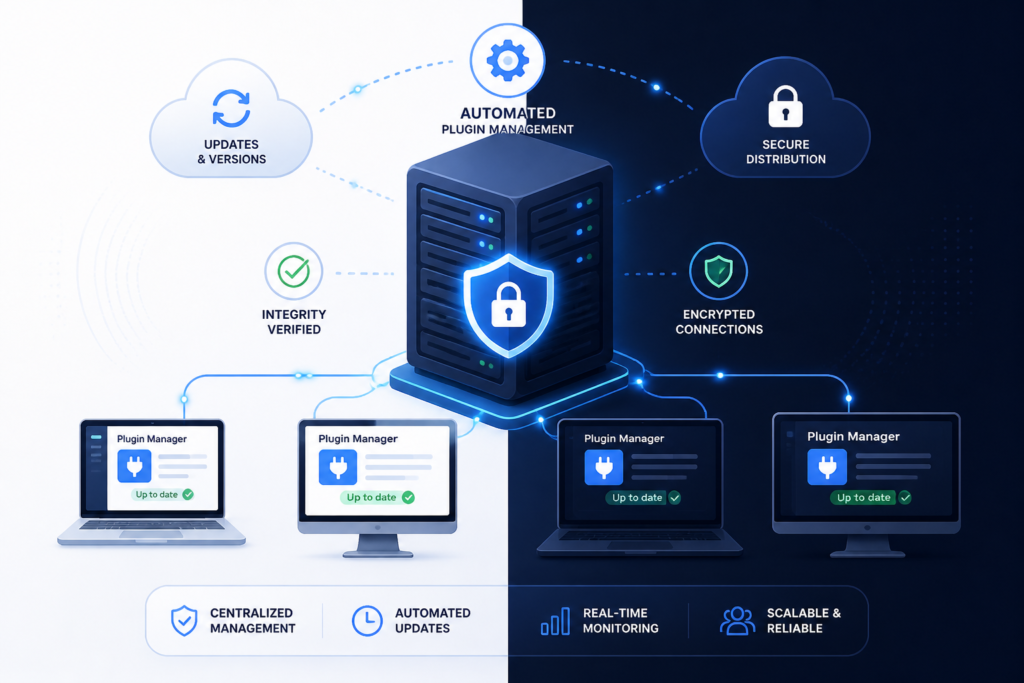
In the world of WordPress, keeping your plugins updated is crucial for both security and functionality. However, managing these updates can be tedious, especially if you have multiple plugins or a large number of clients. This is where the Plugin Update Server by XoBytes comes into play. This powerful tool enables you to deliver private plugin updates directly to customer dashboards, ensuring a seamless experience for both developers and end-users.
By installing your own update server, you can automate the update process, enhance security, and maintain better control over your plugin delivery. In this comprehensive guide, we will walk you through the steps to set up your own update server, discuss best practices, and highlight the benefits of using the XoBytes Plugin Update Server.
Why You Need a Custom Update Server
Managing plugin updates through the official WordPress repository can be limiting. For instance, if you’re a plugin seller, you might want to control how and when your customers receive updates. A custom update server offers several advantages:
- Increased Security: By delivering updates through your server, you can ensure that only legitimate users receive the updates, protecting your intellectual property.
- License Enforcement: You can tie updates to license keys, ensuring that only paying customers can access the latest versions of your plugins.
- Faster Delivery: Updates can be pushed out immediately without waiting for approval from the WordPress repository.
- Better Control: You can manage your update process, including version control and rollback options.
Setting Up Your Update Server
To get started with setting up your own WordPress plugin update server, follow these steps:
- Choose a Hosting Solution: You will need a reliable hosting solution that can handle the traffic and storage requirements of your update server.
- Install WordPress: Set up a new WordPress installation dedicated to your update server.
- Install the Plugin Update Server by XoBytes: Purchase and install the Plugin Update Server from XoBytes.
- Configure the Plugin: Follow the setup instructions provided with the plugin to configure your update server. This includes setting up your license management system and linking your plugins.
- Upload Your Plugins: Upload the plugin ZIP files that you want to distribute through your update server.
- Test the Update Process: Before going live, ensure that the update process works correctly by testing it with a dummy account.
By following these steps, you will have a fully functional update server that can manage your plugin updates securely and efficiently.
Best Practices for Managing Plugin Updates
To ensure a smooth operation of your custom update server, consider these best practices:
- Regular Backups: Always backup your update server and plugin files to avoid data loss.
- Monitor Security: Implement security measures such as SSL certificates and firewalls to protect your server.
- Keep Documentation Updated: Maintain clear documentation for your users on how to access and use the update server.
- Engage with Customers: Provide support for users facing issues with updates, enhancing their overall experience.
Following these practices will help you maintain a reliable and secure update server.
Conclusion
In conclusion, setting up your own WordPress plugin update server is a game-changer for plugin developers and sellers. It provides you with the tools necessary to secure your updates, enforce license management, and streamline the delivery process. The Plugin Update Server by XoBytes is an excellent choice for anyone looking to enhance their plugin delivery capabilities. Don’t wait any longer—start automating your updates today!
Understanding the Importance of Regular Plugin Updates
Regularly updating your WordPress plugins is not just a matter of keeping up with the latest features; it’s essential for maintaining the security and performance of your website. Here are some reasons why:
- Security Vulnerabilities: Outdated plugins can be a significant security risk. Hackers often exploit known vulnerabilities in older versions of plugins to gain unauthorized access to websites.
- Compatibility Issues: As WordPress core updates are released, older plugins may become incompatible, leading to functionality issues or even crashes.
- Performance Improvements: Newer versions of plugins often come with optimizations that improve speed and performance, which can enhance the user experience on your site.
Related XoBytes Products
Plugin Update Server for WordPress by XoBytes.com
$25.00
Plugin Update Server by XoBytes lets WordPress plugin sellers deliver private plugin updates directly to customer dashboards. Upload…
Agentic Support Desk for WordPress by XoBytes.com
$19.99
Agentic Support Desk by Xobytes is an AI-powered WordPress support desk built for software sellers, WooCommerce stores, agencies,…

Upgrades, Packages & Tiers for WooCommerce By XoBytes.com
$25.00
This is a FREEMIUM plugin. Get the free version "Upgrades, Packages & Tiers for WooCommerce By XoBytes.com" Pro…
License manager for WooCommerce by XoBytes.com
$25.00
Xobytes License Manager for WooCommerce is a powerful WooCommerce license manager plugin that lets you sell software licenses,…

Social Media Autopilot With AI by XoBytes.com
$19.99
Xobytes Social Autopilot is a WordPress social media autoposter that helps schedule and promote posts, pages, WooCommerce products,…

AI SEO Data & Automatic Blog Writer for WordPress by XoBytes
$19.99
Turn your WordPress site, Google Search Console data, and SEO opportunities into smarter blog posts, pages, titles, meta…
Product 1 of 6
How to Choose the Right Hosting Solution for Your Update Server
Selecting a hosting solution for your update server is crucial for its performance and reliability. Consider the following factors when making your choice:
- Scalability: Choose a hosting provider that allows you to easily scale your resources as your update needs grow.
- Uptime Guarantee: Look for a host that offers a high uptime guarantee (99.9% or higher) to ensure your update server is always accessible.
- Support: Opt for a hosting provider with robust customer support, including 24/7 assistance, to help resolve any issues quickly.
- Security Features: Ensure the hosting solution includes security measures such as DDoS protection, regular backups, and SSL certificates.
Implementing License Management for Your Plugins
Effective license management is a vital component of your custom update server. Here’s how to implement it:
For additional authoritative context, review LinkedIn.
- Choose a License System: Decide on a licensing model (e.g., single site, multi-site, developer licenses) that suits your business model.
- Integrate License Keys: Use a licensing plugin or custom code to generate unique license keys for each customer upon purchase.
- Activate and Validate: Implement a system to validate license keys when users attempt to update their plugins, ensuring that only legitimate users receive updates.
- Manage Expirations: Set up a process for handling license expirations and renewals, including automated reminders for your customers.
Testing Your Update Server Before Launch
Before going live with your update server, thorough testing is essential to ensure everything functions correctly. Follow these steps:
Continue with Mastering Plugin Update Servers for Seamless WordPress Updates for additional XoBytes guidance.
- Create a Test Environment: Set up a staging site that mimics your production environment to test updates without affecting live users.
- Simulate User Scenarios: Test various scenarios, such as a user with a valid license key, a user with an expired key, and a user without a key, to ensure your server responds appropriately.
- Check Error Handling: Ensure that your server provides clear error messages and instructions for users encountering issues during the update process.
- Gather Feedback: If possible, involve a small group of trusted users to test the server and provide feedback on their experience.
Monitoring and Maintaining Your Update Server
Once your update server is live, ongoing monitoring and maintenance are essential to ensure its continued success. Here are some strategies:
- Regular Updates: Keep your update server software, including WordPress and any plugins, up to date to avoid vulnerabilities.
- Monitor Performance: Use analytics tools to monitor server performance and user interactions, identifying any potential bottlenecks or issues.
- Security Audits: Conduct regular security audits to identify and address potential vulnerabilities before they can be exploited.
- User Feedback: Continuously seek user feedback to improve the update process and address any concerns promptly.
Comparing XoBytes Plugin Update Server with Other Solutions
When considering a custom update server, it’s helpful to compare available options. Here’s how XoBytes Plugin Update Server stacks up against other solutions:
| Feature | XoBytes Plugin Update Server | Other Solutions |
|---|---|---|
| Ease of Setup | User-friendly setup process | Varies; some require technical expertise |
| License Management | Built-in license management | May require additional plugins |
| Support | Dedicated support from XoBytes | Varies; may have limited support |
| Security Features | Comprehensive security measures | May lack robust security |
By evaluating these features, you can make an informed decision about the best update server solution for your needs.
Frequently Asked Questions
Here are some common questions regarding the setup and benefits of a custom WordPress plugin update server:
For more information, please refer to the FAQs section above.
What is a WordPress plugin update server?
A WordPress plugin update server is a private or custom system that delivers plugin updates directly to users, bypassing the official WordPress repository, enabling secure, license-based updates.
How does the Plugin Update Server by XoBytes work?
It allows plugin sellers to upload release ZIP files, activate licenses, and deliver private updates directly to customer dashboards, streamlining the update process and enhancing security.
Can I use this setup for WooCommerce digital products?
Yes, integrating the Plugin Update Server with WooCommerce license management ensures secure, automated updates for your digital products sold via WooCommerce.
What are the benefits of a custom update server over the default WordPress update system?
A custom update server offers increased security, license enforcement, faster delivery, and control over plugin updates, especially useful for premium or proprietary plugins.
What is a WordPress plugin update server?
A WordPress plugin update server is a private or custom system that delivers plugin updates directly to users, bypassing the official WordPress repository, enabling secure, license-based updates.
How does the Plugin Update Server by XoBytes work?
It allows plugin sellers to upload release ZIP files, activate licenses, and deliver private updates directly to customer dashboards, streamlining the update process and enhancing security.
Can I use this setup for WooCommerce digital products?
Yes, integrating the Plugin Update Server with WooCommerce license management ensures secure, automated updates for your digital products sold via WooCommerce.
What are the benefits of a custom update server over the default WordPress update system?
A custom update server offers increased security, license enforcement, faster delivery, and control over plugin updates, especially useful for premium or proprietary plugins.
Leave a Reply