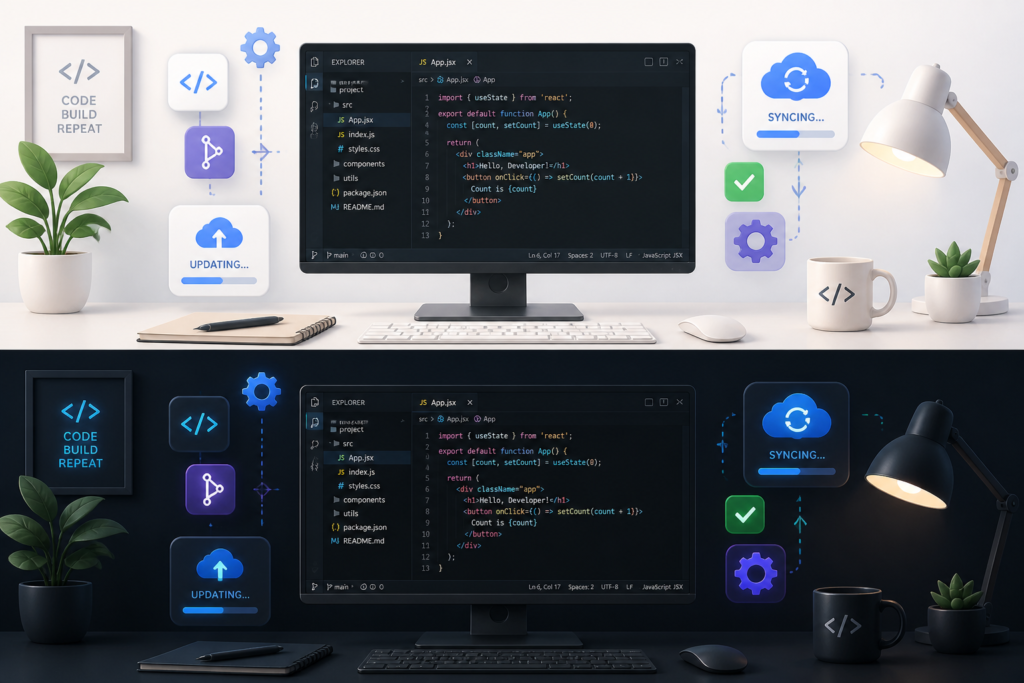
Managing updates for WordPress plugins can be a daunting task, especially for developers and digital product sellers. Fortunately, the Plugin Update Server by XoBytes simplifies this process immensely. For just $25.00, this tool enables you to deliver private plugin updates directly to your customers’ dashboards, ensuring they always have the latest features and security patches without the hassle of manual updates.
In this comprehensive tutorial, we’ll explore how to master WordPress plugin updates using the XoBytes Plugin Update Server. We will cover everything from installation to best practices for license activation and product mapping. By the end of this guide, you will be equipped with the knowledge to manage your plugin updates securely and efficiently.
Why Use a Plugin Update Server?
First, let’s discuss the main reasons to implement a custom plugin update server:
- Enhanced Security: By using a private server, you can ensure that only authorized users receive updates, reducing the risk of unauthorized access.
- License Enforcement: You can enforce licensing rules, ensuring that only paying customers receive updates.
- Faster Delivery: Updates can be pushed directly to customer dashboards, providing a smoother experience.
- Control Over Updates: You have full control over when and how updates are released, allowing you to manage your product lifecycle effectively.
Setting Up the XoBytes Plugin Update Server
Now, let’s dive into the step-by-step process of setting up your XoBytes Plugin Update Server:
- Purchase the Plugin: Start by purchasing the Plugin Update Server by XoBytes from our shop.
- Install the Plugin: Upload the plugin ZIP file to your WordPress site and activate it.
- Configure Settings: Go to the settings page to configure your update server. Here, you can set your license keys and product details.
- Upload Release Files: For each plugin update, upload the release ZIP files to the server.
- Activate Licenses: Ensure that your customers can activate their licenses through the dashboard.
- Test Updates: Finally, test the update process to ensure everything works smoothly.
By following these steps, you’ll have a fully functional plugin update server tailored to your needs. The XoBytes Plugin Update Server makes it easy to manage updates without the complexities of the WordPress repository.
Best Practices for Managing Plugin Updates
To ensure a seamless experience for your users, consider these best practices:
- Regularly Update Your Plugins: Keep your plugins updated to ensure they are secure and compatible with the latest WordPress versions.
- Communicate with Customers: Inform your customers about new updates and how they can access them.
- Backup Before Updates: Always backup your site before applying updates to prevent data loss.
- Monitor Feedback: Pay attention to user feedback regarding updates to address any issues promptly.
For more information on streamlining your plugin updates, check out our guide on streamlining WordPress plugin updates.
When is a Custom Update Server Right for You?
Implementing a custom update server is ideal for:
- Developers selling premium plugins who require license management.
- Businesses looking to enhance security for their plugin updates.
- Companies that need to ensure faster and more reliable delivery of updates.
However, if you are a casual user or only manage a few plugins, the default WordPress update system may suffice.
Understanding the Update Process
Before diving deeper into the specifics of managing updates, it’s essential to understand how the update process works in WordPress. When a plugin is updated, it typically involves the following steps:
Related XoBytes Products
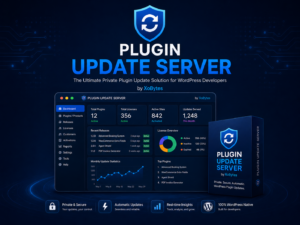
Plugin Update Server for WordPress by XoBytes.com
$25.00
Plugin Update Server by XoBytes lets WordPress plugin sellers deliver private plugin updates directly to customer dashboards. Upload…
Agentic Support Desk for WordPress by XoBytes.com
$19.99
Agentic Support Desk by Xobytes is an AI-powered WordPress support desk built for software sellers, WooCommerce stores, agencies,…

Upgrades, Packages & Tiers for WooCommerce By XoBytes.com
$25.00
This is a FREEMIUM plugin. Get the free version "Upgrades, Packages & Tiers for WooCommerce By XoBytes.com" Pro…
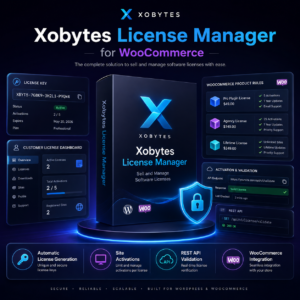
License manager for WooCommerce by XoBytes.com
$25.00
Xobytes License Manager for WooCommerce is a powerful WooCommerce license manager plugin that lets you sell software licenses,…

Social Media Autopilot With AI by XoBytes.com
$19.99
Xobytes Social Autopilot is a WordPress social media autoposter that helps schedule and promote posts, pages, WooCommerce products,…

AI SEO Data & Automatic Blog Writer for WordPress by XoBytes
$19.99
Turn your WordPress site, Google Search Console data, and SEO opportunities into smarter blog posts, pages, titles, meta…
Product 1 of 6
- Version Control: Each plugin update is associated with a version number. This helps in tracking changes and ensuring compatibility with WordPress core updates.
- Change Logs: Every update should come with a change log that details what has been fixed, improved, or changed. This transparency helps users understand the benefits of updating.
- Testing: Before pushing updates live, thorough testing should be conducted to ensure that the new version does not introduce any bugs or compatibility issues.
Implementing Version Control for Your Plugins
Version control is crucial for managing updates efficiently. Here’s how to implement it effectively:
For additional authoritative context, review LinkedIn.
- Semantic Versioning: Adopt a semantic versioning strategy (e.g., MAJOR.MINOR.PATCH) to clearly communicate the nature of changes in each update.
- Documentation: Keep detailed documentation of changes made in each version. This can be invaluable for troubleshooting and for users to understand the evolution of the plugin.
- Automated Testing: Use automated testing tools to ensure that each version functions correctly before release. This reduces the risk of bugs in production.
Comparing Custom Update Servers with the Default WordPress System
When deciding whether to implement a custom update server or rely on the default WordPress update system, consider the following comparisons:
Continue with Mastering Plugin Update Servers for Seamless WordPress Updates for additional XoBytes guidance.
| Feature | Custom Update Server | Default WordPress Update System |
|---|---|---|
| Security | High; only authorized users receive updates. | Moderate; open to all users with access to the repository. |
| License Management | Yes; can enforce licensing rules. | No; does not support license enforcement. |
| Update Control | Full control over timing and content of updates. | Limited control; updates are managed by WordPress. |
| User Experience | Smoother, with direct updates to customer dashboards. | Standard; relies on users checking for updates. |
Steps for Testing Your Update Process
Testing is a critical step in the update process. Here’s a structured approach to ensure your updates work as intended:
- Staging Environment: Always test updates in a staging environment that mirrors your live site. This helps identify issues without affecting users.
- Test Scenarios: Create various test scenarios, such as updating from different previous versions, to cover all potential user experiences.
- User Feedback: After deploying an update, gather user feedback to identify any unforeseen issues or areas for improvement.
Best Tools for Managing Plugin Updates
In addition to the XoBytes Plugin Update Server, several tools can help streamline your plugin update management:
- GitHub: Use GitHub for version control and collaboration on plugin development.
- WP-CLI: A command-line interface for WordPress that allows for easy updates and management of plugins without a graphical interface.
- Backup Plugins: Tools like UpdraftPlus or BackupBuddy can automate backups before updates, ensuring data safety.
Common Pitfalls to Avoid
While managing plugin updates, be aware of these common pitfalls:
- Neglecting Backups: Failing to back up your site before updates can lead to significant data loss.
- Ignoring User Feedback: Not addressing user feedback can lead to dissatisfaction and loss of customers.
- Overlooking Testing: Skipping testing can result in deploying buggy updates that frustrate users.
Frequently Asked Questions
Below are some common questions about the XoBytes Plugin Update Server:
What is a WordPress plugin update server?
A WordPress plugin update server is a private or custom system that delivers plugin updates directly to users, bypassing the official WordPress repository, enabling secure, license-based updates.
How does the Plugin Update Server by XoBytes work?
It allows plugin sellers to upload release ZIP files, activate licenses, and deliver private updates directly to customer dashboards, streamlining the update process and enhancing security.
Can I use this setup for WooCommerce digital products?
Yes, integrating the Plugin Update Server with WooCommerce license management ensures secure, automated updates for your digital products sold via WooCommerce.
What are the benefits of a custom update server over the default WordPress update system?
A custom update server offers increased security, license enforcement, faster delivery, and control over plugin updates, especially useful for premium or proprietary plugins.
In conclusion, mastering WordPress plugin updates using the XoBytes Plugin Update Server can significantly enhance your plugin management process. Not only does it provide a secure and efficient way to deliver updates, but it also ensures that your customers have a seamless experience. Ready to take control of your plugin updates? Check out the Plugin Update Server by XoBytes today!
Leave a Reply