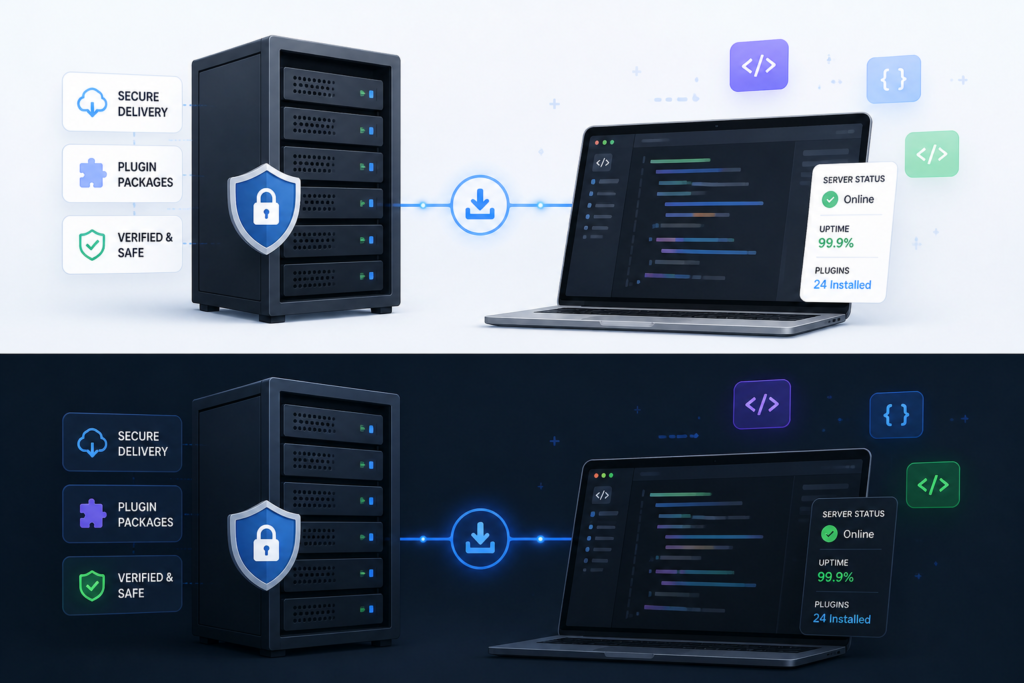
In today’s competitive digital landscape, delivering secure and efficient updates for your WordPress plugins is essential. With the Plugin Update Server by XoBytes, you can streamline your plugin delivery process and enhance security. This powerful tool enables plugin sellers to provide private updates directly to customer dashboards, ensuring a seamless experience for users.
In this comprehensive tutorial, we will guide you through the process of setting up your own custom update server. By following these steps, you will not only improve the delivery of your WordPress plugins but also secure your updates and manage licenses effectively. Let’s dive in!
Why Use a Custom Plugin Update Server?
Many developers and plugin sellers face challenges when it comes to managing plugin updates. Traditional methods often rely on the official WordPress repository, which can be limiting and less secure. Here are some reasons why a custom update server is beneficial:
- Enhanced Security: By bypassing the public repository, you maintain greater control over who accesses your updates.
- License Management: A custom server allows you to enforce licensing rules, ensuring only authorized users receive updates.
- Faster Delivery: Updates are delivered directly to your customers, reducing the time between release and availability.
- Custom Branding: Tailor the update process to match your brand, providing a consistent experience for your users.
Setting Up Your Custom Update Server
To set up your custom plugin update server, follow these steps:
1. Install the Plugin Update Server
First, you need to install the Plugin Update Server by XoBytes. This plugin is designed to facilitate the setup process and is user-friendly.
2. Configure Your Server Settings
After installation, navigate to the plugin settings. Here, you can configure essential details such as:
- Your server URL
- License key management options
- Update frequency settings
3. Upload Your Plugin Releases
Next, upload the ZIP files of your plugin releases. The Plugin Update Server allows you to manage different versions easily, ensuring that users always have access to the latest updates.
4. Activate Licensing
To ensure that only paying customers receive updates, activate your licensing system. This step is crucial for maintaining the integrity of your product offerings.
5. Test Your Setup
Before going live, it’s essential to test your setup. Ensure that updates are delivered correctly and that the licensing system functions as intended.
Best Practices for Managing Updates
To maximize the benefits of your custom update server, consider the following best practices:
- Regular Updates: Keep your plugins up to date to enhance security and performance.
- Monitor User Feedback: Listen to customer feedback to identify any issues with updates.
- Documentation: Provide clear documentation for your users on how to use the update server effectively.
Conclusion
Setting up a custom update server is a game-changer for WordPress plugin sellers. It enhances security, streamlines delivery, and enables effective license management. By implementing the Plugin Update Server by XoBytes, you can significantly improve your plugin delivery process.
Ready to take control of your plugin updates? Start now by visiting the XoBytes shop and purchase the Plugin Update Server for just $25.00!
Understanding the Technical Requirements
Before diving into the setup process, it’s essential to understand the technical requirements for running a custom update server. Here are the key components you will need:
- Web Server: You can use any standard web server (Apache, Nginx, etc.) that supports PHP and MySQL.
- SSL Certificate: For enhanced security, especially when handling sensitive licensing information, ensure your server uses HTTPS.
- Database: A MySQL database is required for storing plugin data and user licenses.
- PHP Version: Ensure your server runs PHP 7.0 or higher for compatibility with modern plugins.
Related XoBytes Products
Plugin Update Server for WordPress by XoBytes.com
$25.00
Plugin Update Server by XoBytes lets WordPress plugin sellers deliver private plugin updates directly to customer dashboards. Upload…
Agentic Support Desk for WordPress by XoBytes.com
$19.99
Agentic Support Desk by Xobytes is an AI-powered WordPress support desk built for software sellers, WooCommerce stores, agencies,…

Upgrades, Packages & Tiers for WooCommerce By XoBytes.com
$25.00
This is a FREEMIUM plugin. Get the free version "Upgrades, Packages & Tiers for WooCommerce By XoBytes.com" Pro…
License manager for WooCommerce by XoBytes.com
$25.00
Xobytes License Manager for WooCommerce is a powerful WooCommerce license manager plugin that lets you sell software licenses,…

Social Media Autopilot With AI by XoBytes.com
$19.99
Xobytes Social Autopilot is a WordPress social media autoposter that helps schedule and promote posts, pages, WooCommerce products,…

AI SEO Data & Automatic Blog Writer for WordPress by XoBytes
$19.99
Turn your WordPress site, Google Search Console data, and SEO opportunities into smarter blog posts, pages, titles, meta…
Product 1 of 6
Implementing a Version Control System
To manage your plugin updates effectively, consider implementing a version control system (VCS) such as Git. This practice allows you to track changes, collaborate with other developers, and roll back to previous versions if necessary. Here’s how to get started:
- Initialize a Git Repository: Create a new Git repository in your plugin’s directory.
- Add Files: Stage your plugin files using
git add .. - Commit Changes: Commit your changes with a descriptive message using
git commit -m "Initial commit". - Push to Remote: If using a service like GitHub, push your local repository to the remote server.
This system not only helps in managing updates but also provides a backup of your plugin’s codebase.
Customizing Update Notifications
To enhance user experience, consider customizing the update notifications that users receive. WordPress allows you to modify the update messages through hooks. Here’s a simple example:
For additional authoritative context, review LinkedIn.
add_filter('update_feedback', 'custom_update_message', 10, 2);
function custom_update_message($feedback, $item) {
    return 'New version available! Check out the latest features in version ' . $item->new_version;
}
This code snippet will change the default update message to include a custom message, making it more informative for your users.
Monitoring Performance and User Engagement
After setting up your custom update server, it’s crucial to monitor its performance and user engagement. Here are some metrics to consider:
Continue with Boost Your WordPress Plugin Delivery with a Custom Update Server for additional XoBytes guidance.
- Update Success Rate: Track how many users successfully receive updates compared to those who encounter errors.
- User Feedback: Encourage users to provide feedback on the update process to identify areas for improvement.
- License Activation Rate: Monitor how many users activate their licenses after purchase to gauge the effectiveness of your licensing system.
Using analytics tools can help you gather this data and make informed decisions about future updates and improvements.
Choosing the Right Hosting Environment
The hosting environment for your custom update server can significantly impact its performance. Here are some factors to consider when selecting a hosting provider:
- Performance: Look for a hosting provider that offers SSD storage and high uptime guarantees.
- Scalability: Ensure that your host can accommodate increased traffic as your user base grows.
- Support: Choose a provider with excellent customer support to assist you with any technical issues.
Popular hosting options include DigitalOcean, SiteGround, and WP Engine, each offering various plans tailored to different needs.
Testing and Quality Assurance
Before launching your custom update server, thorough testing is essential. Here are some key areas to focus on during your quality assurance process:
- Functionality Testing: Ensure that all features of the update server work as intended, including update delivery and license activation.
- Security Testing: Conduct security audits to identify vulnerabilities in your server setup.
- User Acceptance Testing: Have a small group of users test the update process and provide feedback on their experience.
By addressing any issues before going live, you can ensure a smoother experience for your users and reduce the likelihood of post-launch problems.
Frequently Asked Questions
Here are some common questions and answers regarding the custom update server:
- What is a WordPress plugin update server? A WordPress plugin update server is a private or custom system that delivers plugin updates directly to users, bypassing the official WordPress repository, enabling secure, license-based updates.
- How does the Plugin Update Server by XoBytes work? It allows plugin sellers to upload release ZIP files, activate licenses, and deliver private updates directly to customer dashboards, streamlining the update process and enhancing security.
- Can I use this setup for WooCommerce digital products? Yes, integrating the Plugin Update Server with WooCommerce license management ensures secure, automated updates for your digital products sold via WooCommerce.
- What are the benefits of a custom update server over the default WordPress update system? A custom update server offers increased security, license enforcement, faster delivery, and control over plugin updates, especially useful for premium or proprietary plugins.
Leave a Reply