
In today’s digital landscape, managing WordPress plugins efficiently is crucial for maintaining your site’s security and performance. A secure WordPress plugin update server can streamline updates, enhance security, and provide peace of mind. This step-by-step guide will walk you through the process of creating a secure plugin update server.
Understanding the Need for a Custom Plugin Update Server
Many developers and site administrators choose to rely on the public WordPress repository for plugin updates. However, this can pose risks, such as potential security vulnerabilities and lack of control over update deployment. A custom plugin update server offers a private solution that allows you to manage updates securely and efficiently.
Benefits of a Custom Plugin Update Server
- Enhanced Security: By hosting your updates, you reduce the risk of unauthorized access and tampering.
- Faster Deployment: Updates can be deployed quickly without relying on third-party repositories.
- Better Control: You have full control over which versions are available and when they are released.
- Automation: Automate the update process for multiple sites or clients, saving time and effort.
Step 1: Setting Up Your Server Environment
To create a secure WordPress plugin update server, you need to set up a suitable server environment. Here’s how:
- Choose a Hosting Provider: Select a reliable hosting provider that supports PHP and MySQL.
- Install WordPress: Set up a fresh WordPress installation on your server.
- Secure Your Server: Implement security measures such as SSL certificates and firewall configurations.
Step 2: Configuring the Update Server
Once your server is ready, you’ll need to configure it for plugin updates. Follow these steps:
- Install the Plugin Update Server: Use the XoBytes Plugin Update Server for seamless integration.
- Set Up Licensing: Implement license validation to ensure only authorized users can access updates.
- Configure Update Delivery: Set up the delivery mechanism for updates, ensuring it is secure and efficient.
Step 3: Securing the Update Process
Security is paramount when managing a custom plugin update server. Here are some best practices:
- Access Controls: Limit access to the server to authorized personnel only.
- Use Tamper Guard: Integrate tools like Tamper Guard to monitor for unauthorized changes.
- Encrypt Updates: Ensure that update files are delivered securely to prevent interception.
Step 4: Automating Updates
Automation can significantly enhance the efficiency of your update server. Consider the following:
- Scheduled Updates: Set up a schedule for regular updates to ensure your plugins are always current.
- Notifications: Implement a notification system to inform users of new updates.
Step 5: Testing Your Update Server
Before going live, it’s essential to test your update server thoroughly. Follow these steps:
- Test Update Delivery: Ensure updates are delivered correctly to client sites.
- Check Security Features: Verify that all security measures are functioning as intended.
- Gather Feedback: Get feedback from users to identify any issues or areas for improvement.
Step 6: Ongoing Maintenance and Monitoring
After launching your update server, ongoing maintenance is crucial:
- Regular Updates: Keep your server and plugins up to date to mitigate security risks.
- Monitor for Tampering: Use monitoring tools to detect any unauthorized access or changes.
Conclusion
Creating a secure WordPress plugin update server is a vital step in enhancing your site’s security and ensuring reliable updates. By following this step-by-step guide, you can streamline your update process and provide a safer experience for your users.
Step 7: Implementing Version Control
Version control is essential for managing updates effectively. It allows you to track changes, revert to previous versions if necessary, and collaborate more efficiently. Here’s how to implement version control for your plugin updates:
For a practical companion to this section, explore How to Set Up and Manage a Custom WordPress Plugin Update Server.
- Choose a Version Control System: Use systems like Git or SVN to manage your plugin codebase.
- Set Up a Repository: Create a repository on platforms like GitHub or Bitbucket to store your plugin code.
- Commit Changes Regularly: Make regular commits with clear messages to document changes and updates.
- Branching Strategy: Use branching strategies to manage new features and bug fixes without disrupting the main codebase.
Step 8: Creating a User-Friendly Update Interface
An intuitive user interface can significantly enhance the experience for users managing updates. Consider the following:
- Dashboard Integration: Integrate your update server with the WordPress dashboard for easy access.
- Clear Notifications: Provide clear and concise notifications about available updates, including version numbers and release notes.
- User Roles: Implement user roles to allow different levels of access and control over updates.
Step 9: Establishing a Backup Strategy
Backing up your plugin update server is crucial to prevent data loss. Here are some strategies to consider:
Related XoBytes Products

Plugin Update Server for WordPress by XoBytes.com
$25.00
Plugin Update Server by XoBytes lets WordPress plugin sellers deliver private plugin updates directly to customer dashboards. Upload…
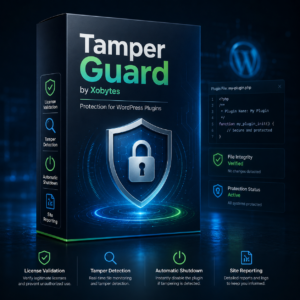
Tamper Guard by XoBytes | WordPress Plugin Tamper Detector
$25.00
Protect your commercial WordPress plugins with license-based tamper detection, file integrity monitoring, automatic shutdown protection, and site reporting.…
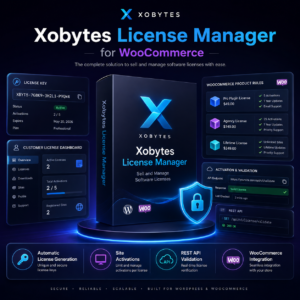
License manager for WooCommerce by XoBytes.com
$25.00
Xobytes License Manager for WooCommerce is a powerful WooCommerce license manager plugin that lets you sell software licenses,…
- Regular Backups: Schedule regular backups of your server and database to secure your data.
- Offsite Storage: Store backups in a secure offsite location or use cloud storage solutions.
- Automated Backup Tools: Utilize automated backup plugins or scripts to streamline the backup process.
Step 10: Analyzing Update Performance
Regularly analyzing the performance of your update server can help you identify areas for improvement. Consider these metrics:
- Update Success Rate: Monitor the percentage of successful updates versus failed ones.
- Time to Update: Track how long it takes for updates to be deployed and installed.
- User Feedback: Gather feedback from users regarding their update experience to make necessary adjustments.
Step 11: Exploring Alternative Update Solutions
While a custom update server is beneficial, you may also consider alternative solutions based on your needs:
- Managed WordPress Hosting: Some managed hosting providers offer built-in update management solutions that can simplify the process.
- Third-Party Update Services: Evaluate third-party services that specialize in plugin updates if you prefer outsourcing this task.
- Hybrid Approach: Combine a custom update server with existing solutions for a more robust update strategy.
Step 12: Keeping Abreast of Security Trends
Staying informed about the latest security trends and vulnerabilities is vital for maintaining the integrity of your update server. Here are some tips:
- Follow Security Blogs: Subscribe to reputable security blogs and forums to stay updated on the latest threats.
- Participate in Webinars: Attend webinars and workshops focused on WordPress security best practices.
- Join Developer Communities: Engage with developer communities to share insights and learn from others’ experiences.
Step 13: Implementing a Staging Environment
Before deploying updates to your live server, it’s wise to create a staging environment. This allows you to test updates without affecting your users. Here’s how to set it up:
Continue with Mastering WordPress Plugin Updates: Best Practices and Automation Tools for additional XoBytes guidance.
- Create a Staging Site: Duplicate your live site on a subdomain or a separate folder on your server.
- Test Updates: Apply updates to the staging site first to ensure compatibility and functionality.
- Review Performance: Monitor the staging site for any issues before pushing updates live.
Step 14: Incorporating User Feedback for Continuous Improvement
Gathering and incorporating user feedback is essential for the long-term success of your update server. Consider the following methods:
- Surveys: Create surveys to gather user opinions on the update process and experience.
- Feedback Forms: Implement feedback forms directly within the update interface for ease of access.
- User Testing: Conduct user testing sessions to observe how users interact with your update server.
Step 15: Evaluating Cost-Effectiveness
When establishing a custom plugin update server, it’s important to evaluate the cost-effectiveness of your solution. Here are some criteria to consider:
- Hosting Costs: Compare the costs of different hosting providers and their features.
- Time Investment: Assess the time required for setup and ongoing maintenance against the benefits gained.
- Resource Allocation: Determine if your current team can manage the update server or if additional resources are needed.
Step 16: Documentation for Users and Administrators
Providing comprehensive documentation can greatly enhance the user experience and reduce support queries. Consider creating:
- User Guides: Develop easy-to-follow guides for end-users on how to access and manage updates.
- Technical Documentation: Provide detailed technical documentation for administrators on server setup and maintenance.
- Troubleshooting Resources: Create a troubleshooting section to help users resolve common issues quickly.
Step 17: Ensuring Compliance with Licensing and Regulations
Compliance with licensing agreements and regulations is crucial when managing a custom update server. Here are some considerations:
- License Management: Ensure that your licensing system is robust and compliant with any third-party plugin licenses.
- Data Protection Regulations: Familiarize yourself with data protection laws such as GDPR and ensure your update server complies with them.
- Regular Audits: Conduct regular audits of your server and processes to ensure ongoing compliance.
Frequently Asked Questions
If you have more questions about setting up a custom plugin update server, refer to the FAQs below:
- What is a WordPress custom plugin update server? A WordPress custom plugin update server is a privately hosted platform that delivers plugin updates directly to users, bypassing the public WordPress repository, allowing for greater control, security, and automation.
- How can I secure my custom plugin update server? Securing your server involves implementing access controls, using license validation, monitoring for tampering with tools like Tamper Guard, and encrypting update delivery to prevent unauthorized access.
- What are the benefits of using a private plugin update server? A private update server offers enhanced security, faster update deployment, better control over plugin versions, and the ability to automate updates for multiple sites or clients efficiently.
- Can I integrate existing security tools with my update server? Yes, tools like Tamper Guard and file integrity monitoring solutions can be integrated to detect tampering, ensure plugin integrity, and protect your update process from malicious interference.