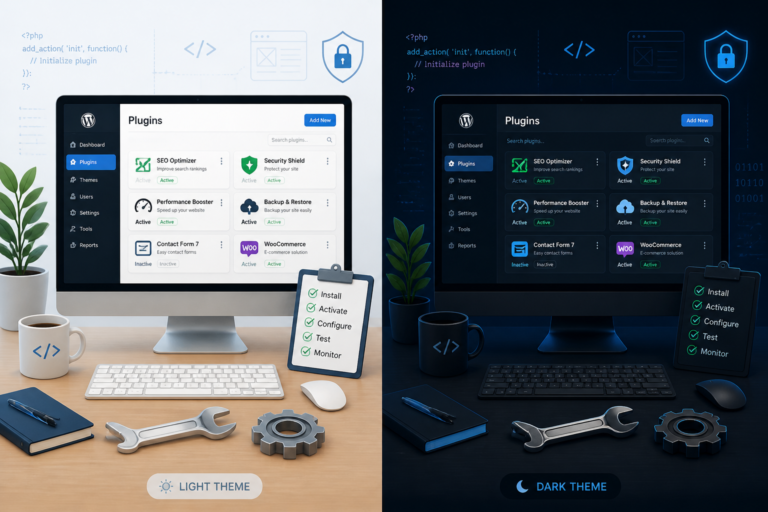
Managing plugin updates is crucial for ensuring the security and performance of your WordPress site. In this guide, we will explore best practices for mastering WordPress plugin updates and discuss automation tools that can streamline the process. Whether you are a seasoned developer or a site owner, understanding how to effectively manage plugin updates can significantly enhance your website’s reliability and security.
Why WordPress Plugin Updates Matter
First, let’s discuss why keeping your plugins up to date is essential. Regular updates are necessary for several reasons:
- Security: Many updates include security patches that protect your site from vulnerabilities.
- Performance: Updates often improve the performance of plugins, leading to a better user experience.
- Compatibility: Newer versions of WordPress may require updated plugins to function correctly.
Because of this, neglecting plugin updates can leave your site exposed to risks and performance issues.
Best Practices for Managing WordPress Plugin Updates
To effectively manage your WordPress plugin updates, consider the following best practices:
- Regularly Check for Updates: Make it a habit to check for updates weekly or bi-weekly. This will help you stay on top of new releases.
- Read Change Logs: Before updating, review the change logs to understand what changes have been made. This can help you anticipate any potential issues.
- Backup Your Site: Always back up your website before performing updates. This ensures you can restore your site if something goes wrong.
- Test Updates on a Staging Site: If possible, test updates on a staging environment before applying them to your live site. This helps avoid unexpected issues.
In addition, you can find more tips on optimizing your WordPress site in our post on Seamless WordPress Support Plugins.
Automation Tools for Plugin Updates
Automation can save you time and reduce the risk of human error. Here are some tools that can help automate your plugin updates:
- Plugin Update Server: This tool allows you to manage and deliver updates directly to your customers. It’s ideal for developers who sell plugins.
- Tamper Guard: This security plugin monitors your plugins for unauthorized changes and alerts you if any tampering is detected. It also protects your plugins by ensuring they are up to date.
- WP-CLI: If you’re comfortable with command-line tools, WP-CLI can automate the update process for all your plugins with simple commands.
Moreover, using automation tools can streamline your workflow and improve your site’s security. You can find more about these tools in our product section, including Plugin Update Server and Tamper Guard.
Common Pitfalls to Avoid
While managing plugin updates, be aware of these common pitfalls:
- Over-reliance on automation without periodic manual checks.
- Ignoring plugin security best practices during updates.
- Failing to monitor plugin integrity after updates.
- Using outdated or incompatible update tools.
- Neglecting to back up before major plugin updates.
By avoiding these pitfalls, you can ensure a smoother update process and maintain the integrity of your site.
Advanced Strategies for Plugin Update Management
While the best practices outlined earlier are essential, there are advanced strategies that can further enhance your approach to managing WordPress plugin updates. These strategies focus on optimizing your update process, ensuring minimal disruption, and maintaining the highest levels of security.
Implement Version Control
Using version control systems like Git can significantly improve how you manage plugin updates. Here’s how to implement it:
- Set Up a Repository: Create a Git repository for your WordPress site. This allows you to track changes in your plugins and core files.
- Commit Changes: Before updating any plugins, commit your current state. This way, you can easily revert to the previous version if necessary.
- Tag Releases: Use tags to mark stable versions of your site. This helps you identify which version was running before an update.
Version control not only helps in managing updates but also aids in collaboration if you have a team working on the site.
Utilize a Maintenance Mode Plugin
During major updates, consider using a maintenance mode plugin to inform users that the site is temporarily unavailable. This can enhance user experience by:
For a practical companion to this section, explore Top WordPress Help Desk Software Solutions: Best Plugins & SaaS Tools for 2024.
- Preventing users from encountering errors during the update process.
- Allowing you to perform updates without interruptions.
- Providing a professional appearance by displaying a custom message.
Some popular maintenance mode plugins include WP Maintenance Mode and SeedProd.
Monitor Plugin Performance Post-Update
After updating plugins, it’s crucial to monitor your site’s performance to catch any issues early. Here are some tools and methods to consider:
- Use Performance Monitoring Tools: Tools like Google PageSpeed Insights and GTmetrix can help you analyze your site’s speed and performance after updates.
- Check Error Logs: Regularly review your server’s error logs for any issues that may arise from plugin updates.
- Conduct User Testing: Ask a few trusted users to navigate your site and report any anomalies they encounter.
Related XoBytes Products
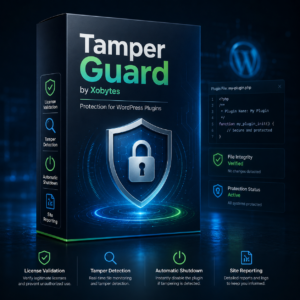
Tamper Guard by XoBytes | WordPress Plugin Tamper Detector
$25.00
Protect your commercial WordPress plugins with license-based tamper detection, file integrity monitoring, automatic shutdown protection, and site reporting.…

Plugin Update Server for WordPress by XoBytes.com
$25.00
Plugin Update Server by XoBytes lets WordPress plugin sellers deliver private plugin updates directly to customer dashboards. Upload…

AI SEO Data & Automatic Blog Writer for WordPress by XoBytes
$19.99
Turn your WordPress site, Google Search Console data, and SEO opportunities into smarter blog posts, pages, titles, meta…
By actively monitoring performance, you can quickly identify and address potential issues caused by plugin updates.
Comparing Popular Automation Tools
When choosing an automation tool for managing WordPress plugin updates, it’s essential to compare the features and benefits of various options. Below is a comparison of some popular automation tools:
| Tool | Features | Best For |
|---|---|---|
| Plugin Update Server | Direct update management, customer notifications | Developers selling plugins |
| Tamper Guard | Security monitoring, tamper detection | Site owners concerned about security |
| WP-CLI | Command-line updates, batch processing | Developers comfortable with command line |
| ManageWP | Centralized management, performance tracking | Agencies managing multiple sites |
Choosing the Right Automation Tool
When selecting an automation tool for your WordPress plugin updates, consider the following criteria:
- Ease of Use: Ensure the tool has an intuitive interface and is easy to navigate.
- Integration Capabilities: Check if the tool integrates with your existing workflow and other tools you use.
- Support and Documentation: Look for tools that offer robust support and comprehensive documentation to help you troubleshoot any issues.
- Cost: Evaluate the pricing structure and determine if it fits within your budget.
By carefully weighing these factors, you can choose an automation tool that best meets your needs and enhances your WordPress plugin update management.
Conclusion
Mastering WordPress plugin updates is an ongoing process that requires diligence and the right strategies. By implementing advanced techniques, utilizing automation tools, and continuously monitoring your site, you can ensure a secure and optimized WordPress environment.
Practical Examples of Successful Plugin Update Management
To illustrate the importance of effective plugin update management, let’s look at a couple of real-world examples:
Continue with WordPress Help Desk Software Compared: Plugins, SaaS, and Support Tools for additional XoBytes guidance.
Example 1: E-commerce Website
A small e-commerce business noticed a significant drop in sales and customer engagement. After investigating, they found that an outdated payment gateway plugin was causing checkout issues. By implementing a regular update schedule and using a staging environment for testing, they were able to quickly resolve the issue and restore functionality, leading to a 30% increase in sales within a month.
Example 2: Blogging Platform
A popular blogging platform was experiencing slow loading times, which affected user retention. The site owner used performance monitoring tools post-update and discovered that a recently updated SEO plugin was conflicting with their caching solution. By rolling back the plugin and notifying the developer, they not only improved site speed but also contributed to the plugin’s future updates.
Implementation Steps for an Effective Update Strategy
To create a robust plugin update strategy, follow these implementation steps:
- Assess Your Current Plugins: Review all installed plugins for their necessity and performance. Remove any that are outdated or no longer in use.
- Establish a Regular Update Schedule: Decide on a frequency for checking and applying updates, such as weekly or bi-weekly, based on your site’s traffic and plugin usage.
- Create a Backup Protocol: Set up automated backups before updates. Use reliable backup plugins like UpdraftPlus or BackupBuddy.
- Document Changes: Keep a log of all updates made, including dates, plugin versions, and any issues encountered. This documentation can be invaluable for troubleshooting.
- Train Your Team: If you have a team, ensure they understand the update process and the importance of maintaining plugin integrity.
Comparing Manual vs. Automated Updates
When deciding between manual and automated updates, consider the following factors:
- Control: Manual updates give you complete control over when and how updates are applied, allowing for thorough testing.
- Time Efficiency: Automated updates save time, especially for those managing multiple sites, but may require regular monitoring to ensure no issues arise.
- Risk Management: Manual updates allow for a more cautious approach, while automated updates can introduce risks if not properly monitored.
- Resource Availability: If you have a dedicated team, manual updates may be feasible; otherwise, automation can help maintain efficiency.
Decision Criteria for Choosing Update Methods
When selecting between manual and automated updates, consider the following decision criteria:
- Site Complexity: More complex sites may benefit from manual updates to address potential conflicts.
- Team Expertise: Assess the technical skills of your team; those with less experience may prefer automated solutions.
- Frequency of Updates: High-frequency updates may necessitate automation to keep up with security and performance improvements.
- Budget Constraints: Evaluate whether the cost of automation tools fits within your budget compared to the time saved.
Frequently Asked Questions
Here are some common questions regarding WordPress plugin updates:
- Why is plugin update management important for WordPress security?
Proper plugin update management ensures that security patches and new features are applied promptly, reducing vulnerabilities and protecting your site from cyber threats. - What tools can help automate plugin updates on WordPress?
Tools like the Plugin Update Server and security plugins such as Tamper Guard can automate updates and monitor plugin integrity, enhancing security and efficiency. - How can I prevent plugin tampering and ensure integrity?
Using file integrity monitoring and tamper detection tools like Tamper Guard helps identify unauthorized modifications and automatically protect your plugins. - Is manual updating still necessary after automation implementation?
While automation reduces manual effort, periodic manual checks are recommended to verify system health and address any issues that automated tools might miss.
In conclusion, mastering WordPress plugin updates involves understanding best practices and leveraging automation tools. By following these guidelines, you can enhance your site’s security and performance while reducing the time spent on manual updates.