
Keeping your WordPress site secure and efficient is crucial, and one of the best ways to achieve this is through optimizing WordPress plugin updates. In this article, we will explore how to set up a custom update server for your plugins and discuss best practices and tools that can enhance your update process.
What is a Custom Plugin Update Server?
A custom plugin update server is a privately hosted platform that allows developers to deliver plugin updates directly to users. This method bypasses the public WordPress repository, providing greater control and security over the update process. As a result, you can ensure that your users receive updates seamlessly and securely.
Why Optimize Plugin Updates?
Optimizing plugin updates is essential for several reasons:
- Security: Regular updates help patch vulnerabilities and protect your site from malicious attacks.
- Performance: Updates can improve the efficiency of plugins, enhancing the overall performance of your site.
- User Experience: Seamless updates ensure that users have access to the latest features and fixes, improving their experience.
Therefore, setting up a custom update server is a strategic move for any serious WordPress developer.
Setting Up Your Custom Update Server
Here’s a step-by-step guide to setting up your custom WordPress plugin update server:
1. Choose Your Hosting Environment
First, select a reliable hosting environment that can handle your update server. You might consider using a dedicated server or a cloud service to ensure performance and security.
2. Install Required Software
Next, install the necessary software to manage your update server. This typically includes:
- A web server (e.g., Apache or Nginx)
- PHP and MySQL for database management
- Secure FTP for file uploads
3. Configure Your Update Server
Once your software is installed, configure your update server to manage plugin files and updates. Ensure you set up secure access controls to prevent unauthorized access.
4. Implement License Validation
To enhance security, implement license validation. This process verifies that users have legitimate access to your plugins before allowing updates.
5. Monitor for Tampering
Use tools like Tamper Guard to monitor for any tampering attempts on your plugin files. This tool can alert you to potential security breaches.
Best Practices for Managing Plugin Updates
To ensure your custom update server runs smoothly, follow these best practices:
- Regular Backups: Always back up your server and plugin files regularly to prevent data loss.
- Testing Updates: Test updates in a staging environment before deploying them to users.
- Documentation: Maintain clear documentation of your setup procedures and security protocols.
- Automate Where Possible: Use automation tools to streamline the update process and reduce manual errors.
For more insights, check out our post on Mastering WordPress Plugin Updates.
Integrating Tools for Enhanced Security
Integrating additional security tools can further enhance your update server’s effectiveness. Some recommended tools include:
- File Integrity Monitoring: Tools that check for unauthorized changes to your plugin files.
- Analytics Tools: Use analytics to monitor update success rates and user engagement.
- Automated Notifications: Set up notifications for users about new updates and security patches.
In addition, consider using the XoBytes Plugin Update Server for reliable and secure updates.
Conclusion
Optimizing WordPress plugin updates with a custom update server can significantly enhance security, control, and efficiency. By following the steps outlined in this article and implementing best practices, you can ensure that your users receive timely updates while maintaining the integrity of your plugins.
Advanced Configuration for Your Custom Update Server
Once you have set up the basic infrastructure of your custom update server, consider implementing advanced configurations to further enhance its functionality and security. Here are some areas to focus on:
1. Implementing HTTPS
To secure the communication between your update server and users, it’s crucial to implement HTTPS. This can be done by obtaining an SSL certificate for your domain. Most hosting providers offer easy installation options for SSL certificates. Here’s how to set it up:
Related XoBytes Products

Plugin Update Server for WordPress by XoBytes.com
$25.00
Plugin Update Server by XoBytes lets WordPress plugin sellers deliver private plugin updates directly to customer dashboards. Upload…
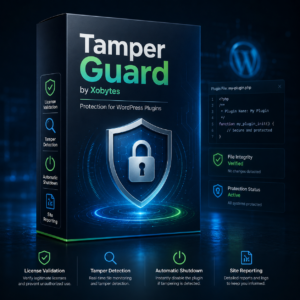
Tamper Guard by XoBytes | WordPress Plugin Tamper Detector
$25.00
Protect your commercial WordPress plugins with license-based tamper detection, file integrity monitoring, automatic shutdown protection, and site reporting.…
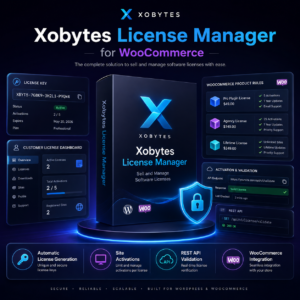
License manager for WooCommerce by XoBytes.com
$25.00
Xobytes License Manager for WooCommerce is a powerful WooCommerce license manager plugin that lets you sell software licenses,…
- Purchase an SSL certificate from a trusted provider.
- Access your hosting control panel and navigate to the SSL/TLS section.
- Follow the prompts to install the certificate on your server.
- Update your server configuration to force HTTPS for all connections.
2. Version Control for Plugin Updates
Utilizing version control systems like Git can significantly streamline your update process. This allows you to track changes, roll back to previous versions if necessary, and collaborate with other developers. Here’s how you can implement version control:
Continue with How to Set Up and Manage a Custom WordPress Plugin Update Server for additional XoBytes guidance.
- Initialize a Git repository: In your plugin directory, run git init to create a new repository.
- Commit your changes: Use git add and git commit to track changes made to your plugin files.
- Push to a remote repository: Set up a remote repository on platforms like GitHub or Bitbucket to back up your code.
3. Custom Update Notifications
Enhancing the user experience involves keeping users informed about updates. You can implement custom notification systems that alert users of new updates. Here’s a simple implementation guide:
- Use the wp_mail() function to send email notifications to users when an update is available.
- Customize the email template to include relevant information about the update, such as version number, change log, and download link.
- Consider integrating with third-party services like Slack or Discord for real-time notifications.
Comparing Custom Update Servers with Public Repositories
When deciding between using a custom update server and a public repository, it’s important to weigh the pros and cons of each approach:
Custom Update Server
- Pros:
- Greater control over updates and versions.
- Enhanced security measures.
- Ability to manage licenses and user access.
- Cons:
- Requires more initial setup and ongoing maintenance.
- Potentially higher costs for hosting and security.
Public Repository
- Pros:
- Easy to set up and manage.
- Wider reach and visibility for your plugins.
- Automatic updates for users without additional configuration.
- Cons:
- Less control over update deployment.
- Potential security risks with public access.
- Limited ability to manage licenses.
Testing and Quality Assurance
Before rolling out updates to your users, thorough testing is essential. Implementing a robust testing strategy can help you catch issues early. Here are some steps to ensure quality assurance:
- Create a Staging Environment: Set up a staging site that mirrors your production environment to test updates without affecting live users.
- Automated Testing: Use tools like PHPUnit for automated testing of your plugin’s functionality.
- User Acceptance Testing (UAT): Invite a select group of users to test the updates and provide feedback before full deployment.
Conclusion
By implementing these advanced configurations, comparing options, and ensuring thorough testing, you can greatly enhance the effectiveness of your custom update server. This not only improves security and user experience but also streamlines your update process for better overall management.
Frequently Asked Questions
Here are some frequently asked questions regarding custom plugin update servers:
- What is a WordPress custom plugin update server?
A WordPress custom plugin update server is a privately hosted platform that delivers plugin updates directly to users, bypassing the public WordPress repository, allowing for greater control, security, and automation. - How can I secure my custom plugin update server?
Securing your server involves implementing access controls, using license validation, monitoring for tampering with tools like Tamper Guard, and encrypting update delivery to prevent unauthorized access. - What are the benefits of using a private plugin update server?
A private update server offers enhanced security, faster update deployment, better control over plugin versions, and the ability to automate updates for multiple sites or clients efficiently. - Can I integrate existing security tools with my update server?
Yes, tools like Tamper Guard and file integrity monitoring solutions can be integrated to detect tampering, ensure plugin integrity, and protect your update process from malicious interference.
By implementing these strategies and tools, you can optimize your WordPress plugin updates effectively, ensuring a secure and efficient experience for your users.