
Managing updates for your WordPress plugins is crucial for maintaining site security and performance. However, relying solely on the public WordPress repository for updates can pose risks. In this guide, we will explore how to set up and manage a custom WordPress plugin update server to ensure reliable updates that enhance security and streamline your update process.
Why Use a Custom Update Server?
Using a custom update server provides several advantages:
- Enhanced Security: By controlling the update process, you minimize the risk of malicious code being introduced through public repositories.
- Faster Deployment: You can deploy updates immediately without waiting for approval from external sources.
- Version Control: Maintain better control over which versions of your plugins are in use across your sites or clients.
- Automation Capabilities: Automate the update process, saving time and reducing errors.
Setting Up Your Custom Plugin Update Server
To set up your custom WordPress plugin update server, follow these steps:
1. Choose Your Hosting Environment
First, you need to select a hosting environment for your update server. You can choose a cloud hosting provider, a dedicated server, or a virtual private server (VPS). Consider factors such as performance, reliability, and scalability when making your choice.
2. Install WordPress
Next, install WordPress on your chosen hosting environment. This will serve as the foundation for your update server. Make sure to configure your installation securely by following best practices.
3. Set Up a Custom Plugin Update Plugin
To facilitate plugin updates, you will need a custom plugin that handles update requests. You can develop your own or use existing solutions like the XoBytes Plugin Update Server. This plugin will manage the delivery of updates to your clients.
4. Configure License Management
Implement a license management system to control access to your plugin updates. This ensures that only authorized users can receive updates. Tools like the XoBytes License Manager for WooCommerce can help you manage licenses effectively.
5. Secure Your Update Server
Security is paramount when managing an update server. Implement the following measures:
- Access Controls: Restrict access to your update server to only those who need it.
- License Validation: Use license validation to ensure that only legitimate users can access updates.
- Monitoring Tools: Integrate tools like Tamper Guard to monitor for tampering and ensure plugin integrity.
- Encryption: Encrypt update delivery to protect against unauthorized access.
Best Practices for Managing Your Update Server
To ensure your update server runs smoothly, consider the following best practices:
- Regular Backups: Perform regular backups of your update server to prevent data loss.
- Testing Updates: Always test updates in a staging environment before deploying them to production.
- Documentation: Maintain thorough documentation of your setup procedures and security protocols.
- Monitoring: Regularly monitor your server for performance issues and security threats.
Automating Updates
Automation can significantly enhance the efficiency of your update process. Consider using tools and plugins that allow for automated updates across multiple sites. This not only saves time but also reduces the chances of human error.
Common Pitfalls to Avoid
When setting up your custom update server, be aware of these common pitfalls:
- Overlooking Security Measures: Don’t neglect security; it’s essential for protecting your plugins and user data.
- Ignoring Compatibility: Ensure that your updates are compatible with existing plugins and themes.
- Inadequate Testing: Always test the update process thoroughly before deployment.
- Neglecting Maintenance: Regularly maintain your update server to ensure optimal performance.
- Insufficient Documentation: Document all procedures to facilitate future updates and troubleshooting.
Conclusion
Setting up and managing a custom WordPress plugin update server is a valuable investment for developers and site administrators alike. By following the steps outlined in this guide, you can enhance the security, reliability, and efficiency of your plugin updates. For further assistance, explore our resources on mastering WordPress plugin updates and automating plugin updates.
Understanding the Update Process
Before diving deeper into the setup of your custom update server, it’s crucial to understand how the update process works in WordPress. When a plugin is updated, the following steps generally occur:
- Version Check: WordPress checks the plugin version against the one available on the update server.
- Download: If a new version is detected, WordPress downloads the update package.
- Installation: The new version is installed, replacing the old one.
- Activation: The updated plugin is activated automatically, or the user is prompted to activate it.
Related XoBytes Products

Plugin Update Server for WordPress by XoBytes.com
$25.00
Plugin Update Server by XoBytes lets WordPress plugin sellers deliver private plugin updates directly to customer dashboards. Upload…
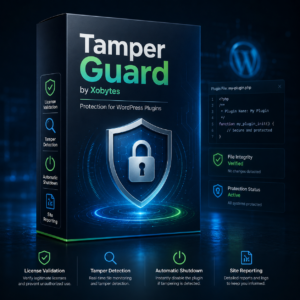
Tamper Guard by XoBytes | WordPress Plugin Tamper Detector
$25.00
Protect your commercial WordPress plugins with license-based tamper detection, file integrity monitoring, automatic shutdown protection, and site reporting.…
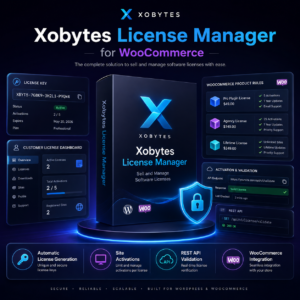
License manager for WooCommerce by XoBytes.com
$25.00
Xobytes License Manager for WooCommerce is a powerful WooCommerce license manager plugin that lets you sell software licenses,…
Understanding this process helps in troubleshooting and optimizing your custom update server.
Choosing the Right Hosting Environment
Your choice of hosting environment can significantly impact the performance and security of your update server. Here are some factors to consider:
- Performance: Look for a hosting provider that offers fast load times and minimal downtime.
- Scalability: Choose a solution that can grow with your needs, especially if you plan to manage updates for multiple plugins or clients.
- Support: Ensure that the hosting provider offers reliable customer support to assist you with any issues.
Implementing a Custom Plugin Update Plugin
While there are existing solutions available, creating a custom plugin update plugin can provide tailored functionality. Here are the steps to create a simple update plugin:
- Create a New Plugin: In your WordPress installation, create a new folder for your plugin and add a PHP file.
- Add Plugin Header: Include a plugin header in your PHP file to define its properties.
- Define Update Functions: Implement functions to handle update requests, check for new versions, and deliver update packages.
- Use Hooks: Utilize WordPress hooks like pre_update_option to integrate your update process into WordPress.
This approach allows you to customize the update process to fit your specific needs.
License Management Strategies
Implementing a robust license management system is crucial for controlling access to your updates. Here are some strategies to consider:
- License Key Generation: Generate unique license keys for each purchase to track authorized users.
- License Validation: Implement a validation system that checks the license key before allowing updates.
- Renewal Reminders: Set up automated reminders for users to renew their licenses before expiration.
These strategies help ensure that only paying customers receive updates, protecting your revenue stream.
Security Best Practices for Your Update Server
Securing your update server is paramount. Here are additional security practices to consider:
Continue with Efficient Plugin Update Management: Strategies and Tools for WordPress for additional XoBytes guidance.
- Firewall Protection: Use a firewall to protect against unauthorized access and attacks.
- SSL Certificates: Implement SSL certificates to encrypt data transmitted between the server and clients.
- Regular Security Audits: Conduct regular audits to identify and rectify potential vulnerabilities.
Implementing these measures can significantly reduce the risk of security breaches.
Testing and Quality Assurance
Before deploying updates, thorough testing is essential. Here’s how to set up an effective testing environment:
- Create a Staging Site: Set up a staging environment that mirrors your production site for testing updates.
- Automated Testing: Use automated testing tools to run regression tests on your plugins after an update.
- User Acceptance Testing: Involve real users to test the updates and provide feedback before going live.
These steps ensure that updates do not introduce new issues and maintain a seamless user experience.
Monitoring and Maintenance
Regular monitoring and maintenance of your update server are vital for long-term success. Consider the following:
- Performance Monitoring: Use tools to monitor server performance and uptime, ensuring that updates are always available.
- Log Analysis: Regularly review server logs to identify unusual activities or potential security threats.
- Update Documentation: Keep documentation up to date with any changes made to the server or update process.
By staying proactive, you can prevent issues before they affect your users.
Frequently Asked Questions
Here are some common questions and answers about custom WordPress plugin update servers.
What is a WordPress custom plugin update server?
A WordPress custom plugin update server is a privately hosted platform that delivers plugin updates directly to users, bypassing the public WordPress repository, allowing for greater control, security, and automation.
How can I secure my custom plugin update server?
Securing your server involves implementing access controls, using license validation, monitoring for tampering with tools like Tamper Guard, and encrypting update delivery to prevent unauthorized access.
What are the benefits of using a private plugin update server?
A private update server offers enhanced security, faster update deployment, better control over plugin versions, and the ability to automate updates for multiple sites or clients efficiently.
Can I integrate existing security tools with my update server?
Yes, tools like Tamper Guard and file integrity monitoring solutions can be integrated to detect tampering, ensure plugin integrity, and protect your update process from malicious interference.
What is a WordPress custom plugin update server?
A WordPress custom plugin update server is a privately hosted platform that delivers plugin updates directly to users, bypassing the public WordPress repository, allowing for greater control, security, and automation.
How can I secure my custom plugin update server?
Securing your server involves implementing access controls, using license validation, monitoring for tampering with tools like Tamper Guard, and encrypting update delivery to prevent unauthorized access.
What are the benefits of using a private plugin update server?
A private update server offers enhanced security, faster update deployment, better control over plugin versions, and the ability to automate updates for multiple sites or clients efficiently.
Can I integrate existing security tools with my update server?
Yes, tools like Tamper Guard and file integrity monitoring solutions can be integrated to detect tampering, ensure plugin integrity, and protect your update process from malicious interference.