
Managing WordPress plugin updates can be challenging, especially for developers and digital product sellers. Fortunately, the Plugin Update Server by XoBytes offers a powerful solution. This tool enables you to deliver private plugin updates directly to your customers, streamlining the entire process.
In this article, we will explore how to securely and automate WordPress plugin updates by installing your own update server. You’ll learn best practices for license activation, product mapping, and how to integrate the Plugin Update Server with WooCommerce for seamless digital product delivery.
Why You Need a Custom Update Server
First, let’s discuss the importance of having a custom update server. Many developers face difficulties in managing plugin updates efficiently. This can lead to outdated plugins, security vulnerabilities, and poor user experience. By setting up your own update server, you gain:
- Enhanced Security: A private update server allows for secure, license-based updates, reducing the risk of unauthorized access or distribution.
- Control Over Updates: You can manage when and how updates are delivered to your users, ensuring they always have the latest features and security patches.
- Improved Customer Experience: Automating the update process can enhance user satisfaction, as customers receive updates directly in their dashboards without manual intervention.
In addition, a custom update server can be particularly beneficial for premium or proprietary plugins. It allows you to enforce licensing and control distribution, which is crucial for maintaining your revenue stream.
Setting Up Your Own Update Server
Now that we’ve established the benefits, let’s dive into the steps to set up your own WordPress plugin update server. Follow this guide to get started:
Step 1: Install the Plugin Update Server
To begin, you need to install the Plugin Update Server by XoBytes. This plugin simplifies the entire process of managing updates. You can purchase it here for just $25.00.
Step 2: Configure Your Server
After installation, configure your server settings according to your needs. This includes setting up your license management system, which is essential for controlling access to your plugins.
Step 3: Upload Your Plugin Files
Once your server is configured, you can start uploading your plugin files. Ensure that each release is packaged correctly in a ZIP format to facilitate smooth updates.
Step 4: Enable License Activation
Implement license activation for your plugins. This step is crucial for ensuring that only authorized users can access updates. The Plugin Update Server by XoBytes provides built-in options for managing licenses effectively.
Step 5: Map Your Products
Next, you need to map your products within the server. This process links your plugins to their respective licenses, ensuring that users receive updates based on their purchases.
Step 6: Test the Update Process
Before going live, thoroughly test the update process. Ensure that updates are delivered seamlessly to customer dashboards and that the licensing system functions correctly.
For a practical companion to this section, explore Secure and Automate WordPress Plugin Updates: Your Update Server.
Benefits of Using the Plugin Update Server by XoBytes
By leveraging the Plugin Update Server by XoBytes, you not only simplify the update process but also enhance security and customer satisfaction. Here are some key benefits:
- Private Updates: Deliver updates directly to your customers without relying on the public WordPress repository.
- License Management: Control access to your plugins, ensuring that only paying customers receive updates.
- Streamlined Process: Automate the delivery of updates, reducing manual workload and errors.
However, it’s essential to note that this solution is ideal for developers and businesses that sell plugins. If you are a casual WordPress user, a custom update server may not be necessary.
Integrating with WooCommerce
If you sell digital products through WooCommerce, integrating the Plugin Update Server is a must. This integration ensures that your customers receive updates automatically, enhancing their experience and reducing support requests.
To integrate, follow these steps:
For additional authoritative context, review LinkedIn.
- Install the WooCommerce License Manager plugin from XoBytes.
- Configure the settings to link your products with the Plugin Update Server.
- Test the purchase and update flow to ensure everything works seamlessly.
Related XoBytes Products
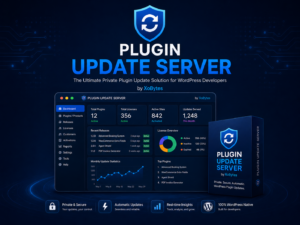
Plugin Update Server for WordPress by XoBytes.com
$25.00
Plugin Update Server by XoBytes lets WordPress plugin sellers deliver private plugin updates directly to customer dashboards. Upload…
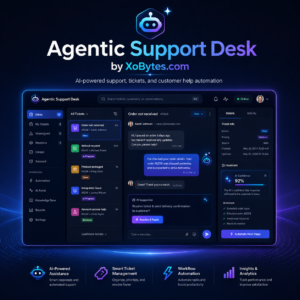
Agentic Support Desk for WordPress by XoBytes.com
$19.99
Agentic Support Desk by Xobytes is an AI-powered WordPress support desk built for software sellers, WooCommerce stores, agencies,…

Upgrades, Packages & Tiers for WooCommerce By XoBytes.com
$25.00
This is a FREEMIUM plugin. Get the free version "Upgrades, Packages & Tiers for WooCommerce By XoBytes.com" Pro…
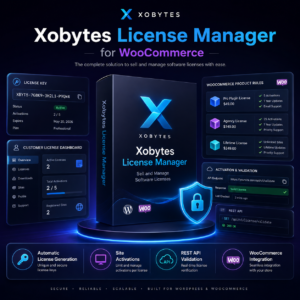
License manager for WooCommerce by XoBytes.com
$25.00
Xobytes License Manager for WooCommerce is a powerful WooCommerce license manager plugin that lets you sell software licenses,…

Social Media Autopilot With AI by XoBytes.com
$19.99
Xobytes Social Autopilot is a WordPress social media autoposter that helps schedule and promote posts, pages, WooCommerce products,…

AI SEO Data & Automatic Blog Writer for WordPress by XoBytes
$19.99
Turn your WordPress site, Google Search Console data, and SEO opportunities into smarter blog posts, pages, titles, meta…
Product 1 of 6
Best Practices for Managing Updates
To maximize the effectiveness of your custom update server, consider the following best practices:
- Regularly Update Your Plugins: Keep your plugins updated to ensure compatibility and security.
- Monitor User Feedback: Pay attention to customer feedback regarding updates to improve the process continuously.
- Educate Your Users: Provide documentation on how to manage updates effectively.
Advanced Security Measures for Your Update Server
While setting up your own update server enhances security, there are additional measures you can implement to further protect your plugins and customer data. Consider the following:
Continue with Mastering WordPress Plugin Updates: A Complete Tutorial for additional XoBytes guidance.
- SSL Encryption: Ensure that your update server uses SSL encryption to protect data in transit. This prevents potential attackers from intercepting sensitive information during the update process.
- IP Whitelisting: Limit access to your update server by whitelisting specific IP addresses. This way, only authorized users can access the server, reducing the risk of unauthorized access.
- Regular Security Audits: Conduct regular security audits to identify vulnerabilities in your server configuration and update processes. This proactive approach helps you stay ahead of potential threats.
Customizing Update Notifications
Providing your users with clear and informative update notifications can enhance their experience. Here are some tips for customizing these notifications:
- Versioning Information: Include detailed versioning information in your notifications. This helps users understand what changes or improvements each update brings.
- Changelog Access: Allow users to access a changelog directly from the notification. This transparency builds trust and keeps users informed about the progress of your plugins.
- Scheduled Notifications: Consider implementing scheduled notifications for major updates. This gives users a heads-up about significant changes, allowing them to prepare accordingly.
Implementing a Staging Environment
Before rolling out updates to your users, it’s wise to test them in a staging environment. Here’s how to set up a staging environment for your plugins:
- Create a Clone of Your Site: Use a plugin or manual methods to clone your live site to a staging environment. This allows you to test updates without affecting your live site.
- Install Updates in Staging: Upload and install your plugin updates in the staging environment first. Test the functionality and compatibility with other plugins and themes.
- Gather Feedback: If you have a select group of trusted users, invite them to test the updates in the staging environment and provide feedback before the public release.
Comparing Update Server Solutions
If you’re considering options for managing plugin updates, it’s essential to compare different solutions. Here’s a brief comparison of popular update server solutions:
| Feature | Plugin Update Server by XoBytes | Other Solutions |
|---|---|---|
| License Management | Built-in | Varies |
| Private Updates | Yes | Limited |
| Ease of Use | User-friendly interface | May require technical skills |
| Integration with WooCommerce | Seamless | Requires additional setup |
Conclusion: Making the Right Choice
When selecting an update server solution, consider your specific needs and the scale of your operations. A custom update server like the Plugin Update Server by XoBytes offers numerous advantages, especially for developers focused on security and customer satisfaction. Weigh your options carefully and choose a solution that aligns with your business goals.
Frequently Asked Questions
Here are some common questions about setting up a custom WordPress update server:
- What is a WordPress plugin update server? A WordPress plugin update server is a private or custom system that delivers plugin updates directly to users, bypassing the official WordPress repository, enabling secure, license-based updates.
- How does the Plugin Update Server by XoBytes work? It allows plugin sellers to upload release ZIP files, activate licenses, and deliver private updates directly to customer dashboards, streamlining the update process and enhancing security.
- Can I use this setup for WooCommerce digital products? Yes, integrating the Plugin Update Server with WooCommerce license management ensures secure, automated updates for your digital products sold via WooCommerce.
- What are the benefits of a custom update server over the default WordPress update system? A custom update server offers increased security, license enforcement, faster delivery, and control over plugin updates, especially useful for premium or proprietary plugins.
Conclusion
In summary, securing and automating WordPress plugin updates by installing your own update server is a smart move for developers and sellers. By using the Plugin Update Server by XoBytes, you can enhance security, streamline updates, and improve customer satisfaction. Don’t wait—take control of your plugin updates today!
Leave a Reply